How to convert HTML to PDF
Turn a saved web page or pasted markup into a PDF — and why no browser-based tool can take a URL.
An invoice template you generated, a receipt page you saved from a browser, a report your build spits out as markup — all of them convert fine here. A live URL does not, and the reason is worth understanding before you go looking for a tool that promises otherwise.
Why you cannot paste a URL here
There is no field for a web address, and that is a real architectural limit rather than a missing feature. BabaPDF has no server. Nothing runs anywhere except the browser tab you have open — which is the point of the whole site, and also the reason this particular thing is impossible.
Think about what fetching a URL would actually mean here. With no server to do it, the request would have to come from your browser, on your network, carrying your cookies. The web forbids exactly that: a page on one origin cannot read the contents of another origin unless that other origin explicitly opts in with CORS headers. Almost nothing does. If your browser could quietly read any site you happen to be logged into, every page you visited could read your webmail. The block is not an inconvenience, it is the thing standing between a random tab and your bank account.
So when a service does accept a URL, it is not doing something clever your browser refuses to. It is doing the fetch on its own machine, in a datacentre, from its own IP address, and rendering it there. That is a legitimate design. It just means your document — and whatever is in it — passes through their computer. Different trade, honestly stated in both directions.
The practical workaround takes about four seconds. Open the page you want, save it (Ctrl+S / Cmd+S, "Web page, complete" or "single file"), and drop the saved .html in here. Your browser has already fetched it, with your session, with permission — the security question is settled before the file ever reaches this tool.
Convert HTML to PDF
Give it the markup
Either upload an .html file or switch to the Paste HTML tab and drop the source straight in. Both paths do exactly the same thing from there.
Check the preview
Your HTML is laid out in an isolated frame right on the page. What you see there is what will be captured, so if an image is missing in the preview it will be missing in the PDF.
Pick a page size
A4 or Letter. This decides how the tall capture is sliced into pages — and it applies to the Convert button only, not Print to PDF.
Convert, or print
Convert to PDF captures the page as an image and slices it. Print to PDF hands the same markup to your browser's print engine instead. They produce genuinely different files — see below.
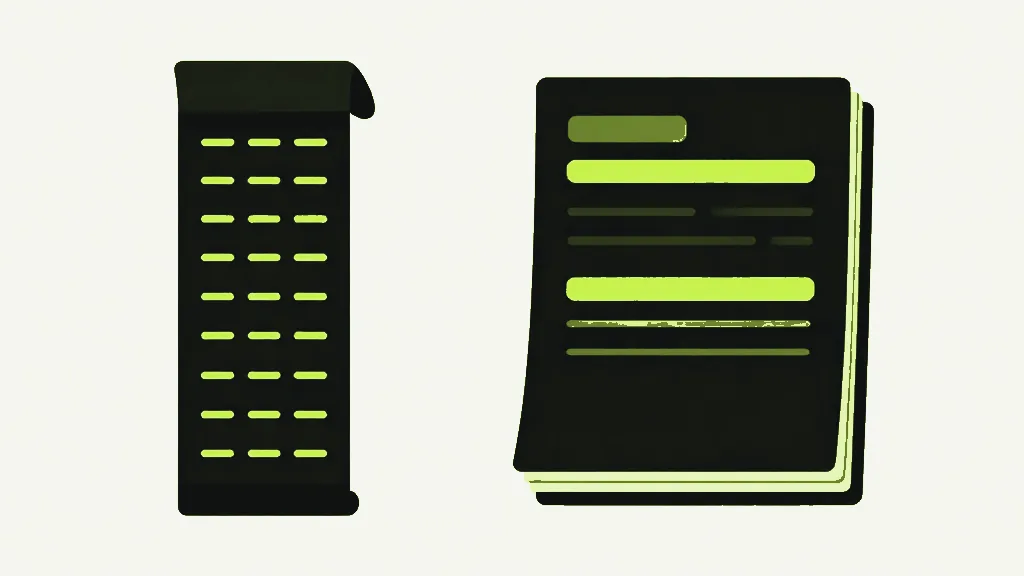
Two buttons, two completely different files
Convert to PDF lets your browser lay the HTML out, screenshots the result, and slices that tall screenshot across pages. Turning HTML into vector PDF properly means reimplementing a browser layout engine, so instead we use the real one and photograph what it produced. The output looks exactly like the page — and it is a picture. You cannot select the text, search it, or copy a line out of it. It is also lossy: each slice is encoded as JPEG at quality 0.92, which is high but is not lossless, so fine text carries faint JPEG artefacts if you zoom in. A picture of a page, and a slightly imperfect one.
Print to PDF does something else entirely. It hands the markup to your browser's own print engine — the same one behind Ctrl+P — and that engine writes real vector text. Selectable, searchable, sharp at any zoom, usually a smaller file. If you want text rather than a photograph of text, this is the button, every time.
Print to PDF ignores the A4/Letter choice above it. That selection is only read by the Convert path. The print dialog uses whatever paper size your browser and system are set to, so change it in the dialog itself, not here. It is a genuine inconsistency in the tool and you should know about it rather than discover it.
What the capture path does with your layout
The HTML is laid out in a frame that is always 794 CSS pixels wide, regardless of whether you picked A4 or Letter. That number is the whole layout viewport, which has one consequence people trip over: your media queries evaluate at 794px. A responsive site with a breakpoint at 900px renders in its narrow layout. If your stylesheet has a print media query, it is not consulted — this is a screen render, not a print.
The capture runs at twice that scale, so an A4 page comes out around 192 DPI — above screen resolution, below proper print resolution. Fine for reading, emailing and archiving a receipt; not what you want for a commercial printer.
What will not make it into your PDF
These all fail quietly rather than loudly, which is why they are worth knowing in advance.
- Anything JavaScript builds. The frame your HTML renders in is sandboxed without script permission — uploaded markup is untrusted, and it must never execute code in this origin. So a chart drawn by a script, a table hydrated by a framework, or content injected on load simply is not there. Only static markup and CSS survive.
- Anything loaded from another website. Cross-origin images, fonts and stylesheets are skipped rather than allowed to break the render — a foreign image would taint the canvas and make the whole export throw, so it is dropped and you still get a PDF. It is not reported. You get a PDF with a hole where the logo was and no error explaining it.
- Anything that takes too long. There is a 15-second ceiling on the layout. Past that the render is abandoned with a message.
The pattern behind all three: self-contained HTML converts reliably. Inline your CSS, embed images as data URLs, and let the markup carry its own content rather than assembling it at runtime. That is exactly what a saved "single file" web page already is, which is why the save-then-upload route works so well.
Which one you actually want
- An invoice or report someone will search, copy from, or archive → Print to PDF. Real text is worth the extra dialog.
- A page with layout so particular that you want a guaranteed pixel-for-pixel record → Convert to PDF. It is a photograph, and a photograph is exactly what you asked for.
- A page that depends on scripts to draw itself → neither, until you save it from the browser after it has run. Then the content is in the markup and both paths work.
Your markup is rendered in your own browser and never leaves your device.


