How to convert JPG images to PDF
Turn photos into a PDF, one per page, and choose between pages that hug each image or a uniform A4 sheet.
A pile of JPGs is not a document. It is a pile. But the person who asked for it — the insurer wanting twenty photos of a damaged wall, the finance team wanting the receipts, the office wanting your passport and its stamp page — wants one file, in a fixed order, one image per page, that opens the same way on their machine as it did on yours. That is what this converter is for.
Convert JPG images to PDF
Add your JPGs
Drop them onto the upload area or browse for them. You can keep adding more, and the running count and total size are shown underneath.
Put them in order
Drag any image up or down by its grip handle. The pages follow the list exactly, top to bottom. This is the step people skip and then redo.
Choose a page size
Fit to image, A4, or Letter. Choosing A4 or Letter reveals a portrait/landscape control; Fit to image does not need one.
Create PDF
Click Create PDF. The document is assembled on your device and downloads immediately.
Fit to image, or A4?
This is the only choice that meaningfully changes what you get, and the arithmetic behind it is worth thirty seconds of your attention because it decides how large your pages turn out.
Fit to image sizes each page to its own image, with no margin and no border — the picture fills the sheet edge to edge. The page size is your image's pixel dimensions multiplied by 0.75. That factor is a 96-DPI assumption converted into PDF points, which run 72 to the inch. Most of the time this is invisible and fine. Occasionally it is startling: a 12-megapixel phone photo is roughly 3024 by 4032 pixels, which produces a page about 31 by 42 inches. Around 80 by 107 centimetres. A poster.
That page opens perfectly and looks completely normal on screen, because a viewer scales it to your window and you never see the ruler. It only announces itself when someone prints it, or drops it into a document with other pages, or looks at the properties. So: Fit to image is right when the images are the point and nobody is printing — assorted receipts, screenshots, a photo set for an insurer. It is wrong when the result has to behave like paper.
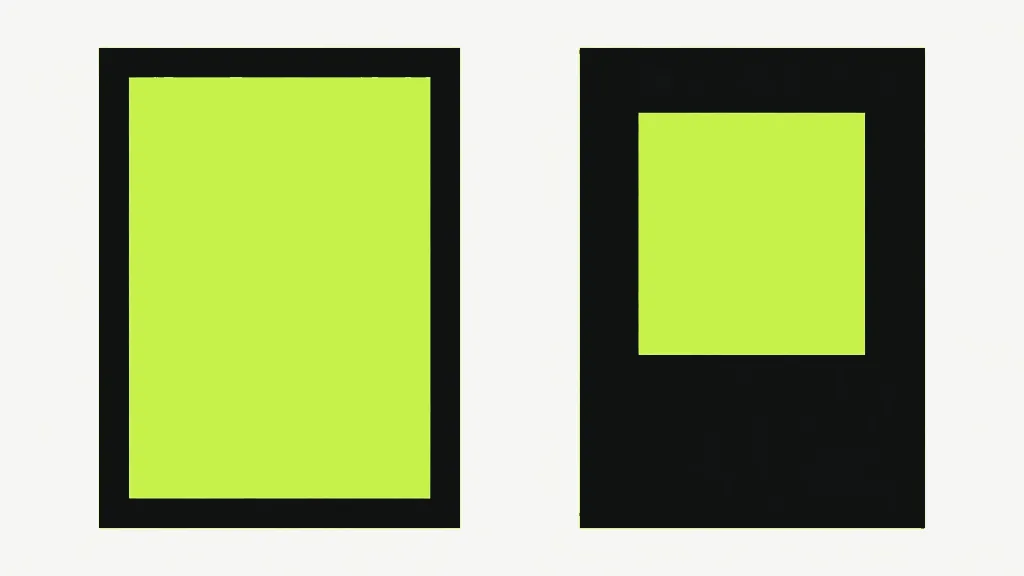
A4 or Letter gives every page the same size regardless of what the images are doing. Each image is scaled to fit inside a 24-point margin — a third of an inch on all four sides — and centred. The aspect ratio is always preserved, at both settings: nothing is ever stretched or squashed to fill a page. That does mean a landscape photo on a portrait A4 sits in the middle with wide white bands above and below it, which is exactly what the orientation control is for. Pick the orientation that matches most of your images and accept the bands on the rest.
The file picker filters. Drag-and-drop does not.
This is the behaviour most likely to catch you, so it goes in the middle rather than the footnotes. The browse button opens a file picker restricted to JPEGs — your PNGs are greyed out and you cannot select them. Dropping files onto the drop zone bypasses that filter completely. The drop handler takes whatever your operating system hands it, unchecked.
So a PNG dropped onto this page is accepted into the list, sits there looking exactly like the JPGs next to it, and fails when you click Create PDF. It fails cleanly, at least, and it fails loudly: the error names the file — something like "diagram.png doesn't look like a valid JPG — skip it and try again" — because the converter tries to embed it as a JPEG and the PDF library refuses. Nothing half-built comes out. Remove the offender with the × on its row and go again, or take your PNGs to PNG to PDF, where they belong and where their transparency is preserved.
Worth knowing which way this check works: it reads the actual bytes, not the extension. Renaming diagram.png to diagram.jpg does not make it a JPEG and this tool will still reject it — correctly, because the file genuinely is not one. The reverse is the useful half: a JPEG your camera saved as .jpeg, or with no extension at all, will drop in and convert fine, because nothing here is reading the name.
Order is the list, and the list is the document
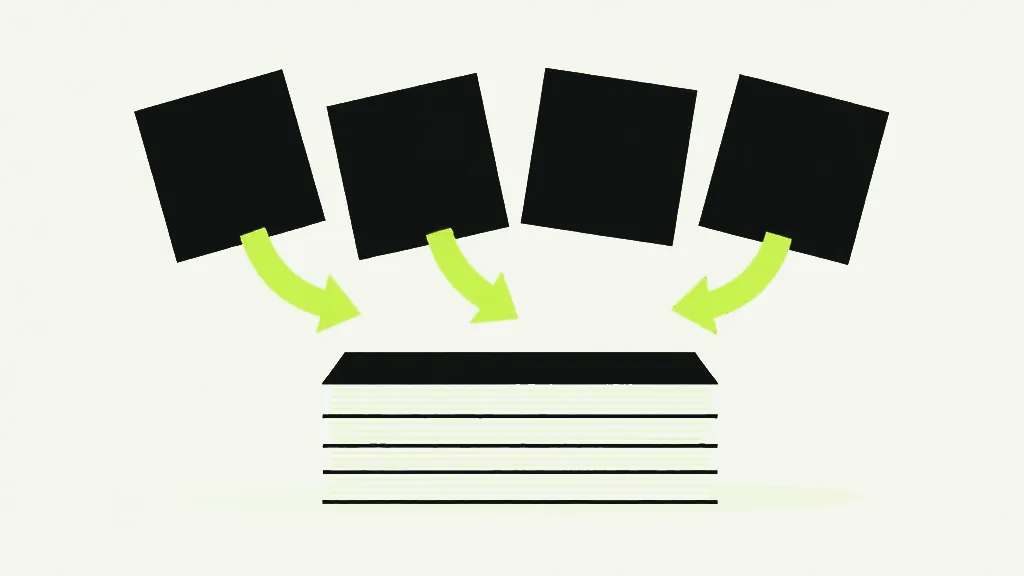
Pages come out in exactly the order the rows appear, top to bottom, with no sorting applied. Your file manager's idea of alphabetical order is not consulted — and that is a mercy, because filename sorting is where IMG_10.jpg lands between IMG_1.jpg and IMG_2.jpg. Drag the rows into the order you want before you convert. It is the difference between one download and three.
The download is always called the same thing
Every conversion downloads as babapdf_images.pdf. Not named after your first image, not after the folder, not after anything you did — always exactly that. Convert three batches in a row without renaming and your downloads folder holds babapdf_images.pdf, babapdf_images (1).pdf and babapdf_images (2).pdf, and nothing anywhere tells you which one is the receipts and which is the wall. Rename them as they land, while you still remember.
The images are read and the PDF is assembled in your browser — nothing is uploaded, and there is no cap on how many you convert beyond your device's memory. And if what you are actually holding is screenshots, charts or line art rather than photographs, use PNG to PDF instead: JPEG does its worst work on hard edges, and PNG keeps them exact.


