How to convert a PDF to JPG
Turn PDF pages into images, pick a resolution that suits the destination, and know when PNG is the better choice.
Turning pages into images is what you do when the destination cannot read a PDF: a slide, a social post, a marketplace listing, a chat window. An image goes anywhere and looks the same everywhere.
Convert PDF pages to JPG
Upload the PDF
Drop in the file you want to convert.
Pick a resolution
Standard (~108 DPI) is for screens. High (~216 DPI) is for printing or zooming into.
Set the quality
The JPG quality slider trades file size against fidelity.
Convert and check
Every page renders to an image and appears as a thumbnail. Review, then download.
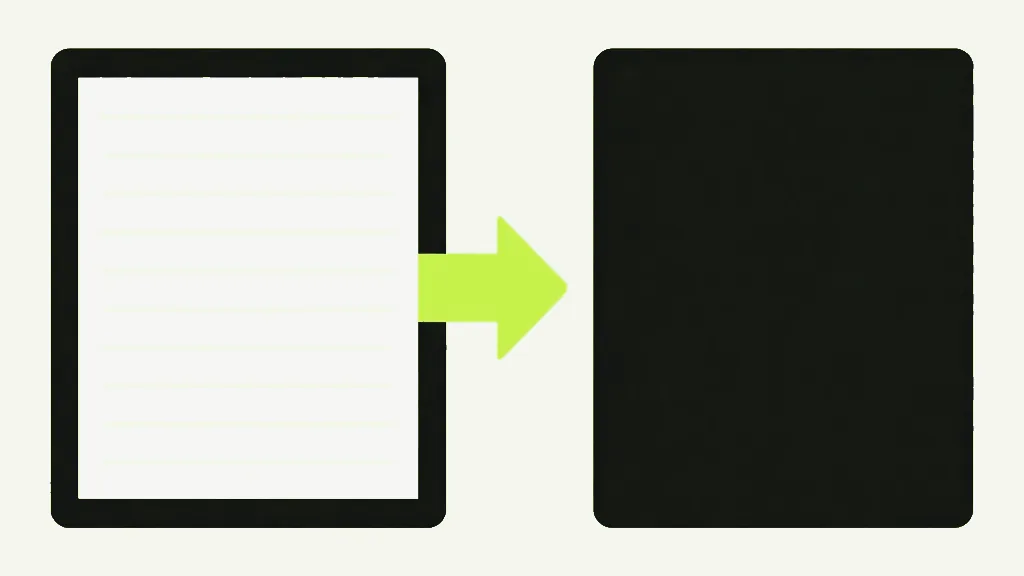
JPG or PNG?
This is the choice that actually affects how the result looks, and it comes down to what is on the page. JPG is lossy and built for photographs; on a page of text it leaves faint smeared halos around the letters. PNG is lossless and keeps the letterforms and thin lines clean, at the cost of a larger file.
- Scanned photos, image-heavy pages → JPG, far smaller for the same apparent quality.
- Text, charts, diagrams, line art → PNG, noticeably crisper.
Multiple pages
One image per page. A single-page PDF downloads as a single image; anything longer is bundled into one .zip, so you are not clicking through twelve download prompts.
This is not the same as extracting images
Converting gives you a picture of the whole page — text, margins and all. If what you actually want is the photograph that sits inside the page, at its original resolution, that is Extract Images instead. People reach for the wrong one constantly and end up cropping page screenshots by hand.


