How to convert a PDF to PNG
Export pages as lossless PNGs, keep transparency intact, and know exactly when PNG beats JPG.
PNG is the choice you make when the page is not a photograph. Diagrams, screenshots, charts, line art, anything with text in it — PNG keeps every edge exactly where the renderer put it, and JPG does not. That difference is real, it is visible, and it comes down to two lines of code in the converter.
Convert PDF pages to PNG
Upload the PDF
Drop in the file. The page count appears once it has been read, and the resolution controls follow.
Pick a resolution
Standard renders at ~108 DPI, High at ~216 DPI. There is no third option and no custom field — these are the two.
Convert
Every page is drawn to a canvas in your own browser and encoded as a PNG. Thumbnails appear as they finish.
Check, then download
Look at the thumbnails before you download — this is the moment to notice you picked the wrong resolution, not after.
What PNG does that JPG cannot
Two things, and the first one surprises people.
Transparency actually survives. JPEG has no alpha channel at all, so before a page is rendered for JPG output the canvas is deliberately flooded with white first — without that backdrop, transparent regions come out black, which is worse than wrong, it is alarming. The PNG path skips that fill entirely. Nothing is painted underneath. So if your page has genuinely transparent regions, the PNG has genuinely transparent regions, and you can drop it onto a coloured background or another image and it composites properly. The JPG of the same page has white baked into it forever.
Most PDF pages are opaque white and this changes nothing for them. But a logo on a transparent page, a diagram exported without a background, a stamp or overlay you want to reuse — for those it is the whole reason to be here.
The second thing is that PNG is lossless. The pixels the renderer produced are the pixels in your file, exactly, forever. JPEG is built for photographs: it throws away detail your eye is bad at noticing, which works beautifully on a beach scene and badly on a hard black edge against white. Text is nothing but hard black edges against white. That is why JPG text acquires faint grey halos and PNG text does not.
There is no quality slider, and that is not an omission
The PDF to JPG page has a quality slider. This one does not, and it is not a missing feature — the slider only exists on the JPG path because quality is a JPEG concept. It sets how much detail the encoder is allowed to discard. PNG discards nothing, so there is no number to set. If you are looking for the slider you were looking for it to make the file smaller, and the honest answer is that the way to make a PNG smaller is to render fewer pixels, which is the resolution choice.
The two resolutions, exactly
A PDF measures itself in points, and there are 72 of them to an inch. Standard renders each page at 1.5 times that, giving ~108 DPI. High renders at 3 times, giving ~216 DPI — twice the linear resolution and therefore four times the pixels and roughly four times the file.
Those figures are exact rather than approximate, and that is worth one sentence. Some converters clamp output to a maximum width, so a big page silently comes back at less than the DPI you asked for. This one has no such clamp: an A0 poster at High really is rendered at 216 DPI, all of it, and your browser will feel that. The number you pick is the number you get.
- Screen, chat, a slide, a web page → Standard. ~108 DPI is already more than a screen shows.
- Printing, or anything someone will zoom into → High. ~216 DPI holds up.
- A page of dense small text you need legible → High, and it is not close.
The filename quirk on long documents
Each image is named after your file with the page number appended, zero-padded to two digits: `report_page-01.png`, `report_page-02.png`. Padding exists so that plain alphabetical sorting keeps page 9 ahead of page 10, which it otherwise would not.
It is padded to two digits, so it stops helping at 100. On a 120-page document you get `page-99` and `page-100`, and anything sorting those as plain text puts `page-100` immediately after `page-10` — nowhere near where it belongs. Most desktop file managers sort numerically and hide this from you completely. Zip listings, scripts, `ls`, and bulk-upload widgets often do not. If you are feeding a hundred-plus pages into something automated, sort them numerically rather than trusting the names, or rename them first.
Two things this is not
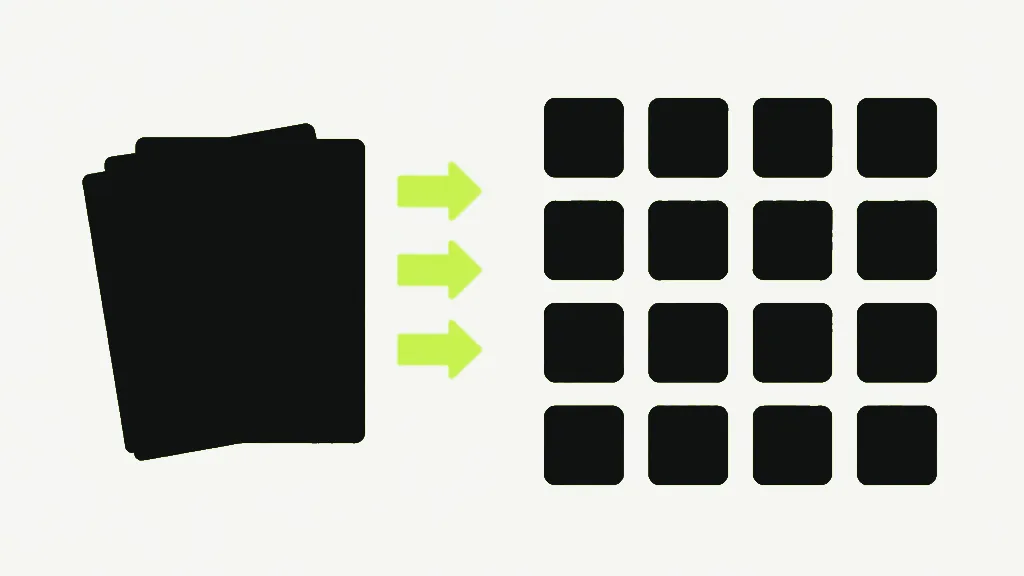
It is one image per page, and more than one page arrives as a single .zip rather than a queue of download prompts. The JPG guide covers that bundling in more detail if you want it.
And this converts pages, not contents. You get a picture of the whole page — text, margins, everything. If what you want is the photograph sitting inside the page at its own original resolution, that is Extract Images, a different tool that reads the embedded image objects rather than rendering what they look like. People reach for the wrong one constantly and end up cropping page renders by hand.
Everything here is rendered by pdf.js inside your own browser tab. Nothing is uploaded, so a long document is limited by your device's memory rather than by someone's upload cap — which at High resolution on a few hundred pages is a real limit worth respecting.


