How to delete pages from a PDF
Remove the pages you do not want and keep everything else — plus the one thing a page delete quietly takes with it.
To delete pages from a PDF, open Delete Pages, drop the file in, click the pages you want gone, and click Remove. A new PDF is assembled from the pages you left alone and downloads on the spot — with one side effect worth knowing about, covered below.
Nearly every document arrives with pages nobody wants. The fax cover sheet. The blank verso. The duplicate scan where the feeder grabbed two sheets. The terms-and-conditions boilerplate printed on the back of every single invoice.
This is the simplest page operation on the site to describe and the one with the most surprising side effect. You point at the pages you do not want, and you get back a new document containing everything else. The description is accurate. It is the word “new” that is doing quiet work, and the last third of this page is about what that word costs.
Delete pages from a PDF
Upload the PDF
Drop in the file. Every page appears as a numbered tile once it has been read.
Tap the pages to remove
Click any tile to mark it. Click again to unmark. Select all and Clear are there for the big jobs.
Remove and download
Click Remove. A new PDF is assembled from the pages you left alone and downloads immediately.
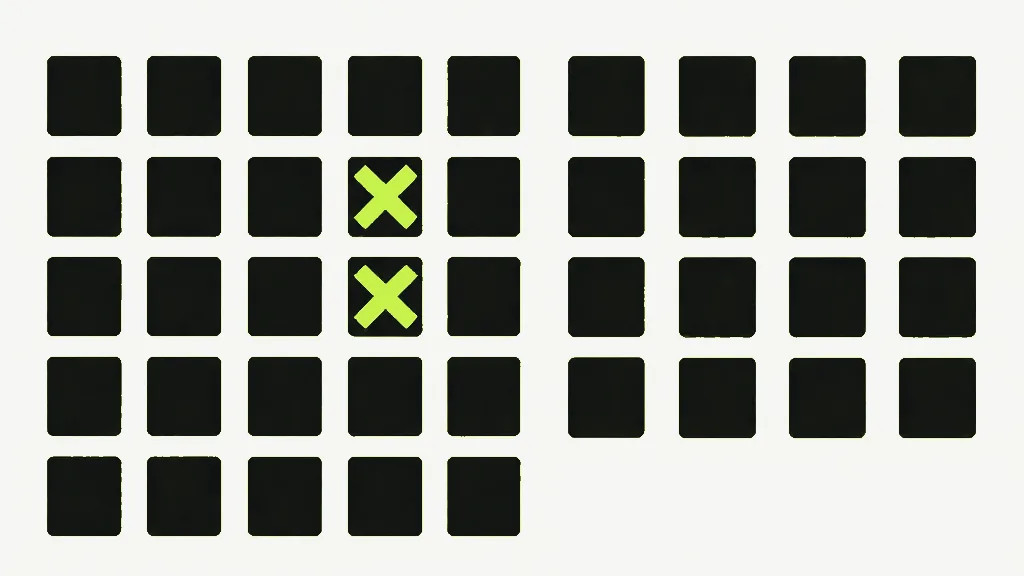
The grid shows numbers, not pages
Each tile carries a page number and nothing else. That is a deliberate trade rather than an unfinished feature: drawing a picture of every page means reading and rendering every page first, which is the slow part of any page tool and is the reason some of them make you wait behind a progress bar. Skipping it means a four-hundred-page scan is ready to work on as soon as the page count comes back.
The trade is real in both directions. If you know the numbers — and for a cover sheet, a blank verso, or every second page of a duplex scan you do know them — numbers are faster than pictures and always will be. If you do not know the numbers, this grid cannot help you find them, and no amount of squinting at it will. Open the file in a viewer, write down the numbers, come back. Or use Organize Pages, which renders real thumbnails and lets you work by eye.
Your original is never touched
The file on your disk is read, never written. Only the copy that downloads has pages missing, so a mis-click costs you a download rather than a document. That is worth saying plainly because it is the opposite of how a desktop editor behaves, where deleting a page and hitting save is genuinely destructive.
The practical shape of that: the result arrives as your filename with _pages-removed on the end, so contract.pdf becomes contract_pages-removed.pdf and lands next to the original rather than on top of it. The button counts your selection back to you before you commit — it reads “Remove 4 pages”, not just “Remove” — and it stays disabled until you have marked something, because removing nothing is not an operation. Load a different file and the selection empties itself, which stops the specific accident of carrying page 7 over from the document you were looking at a minute ago.
You cannot delete every page
Select all and hit Remove and you get an error rather than an empty file, because a PDF with no pages is not a document — it is a corrupt file that some readers open as blank and others refuse entirely. At least one page has to survive.
The message is “You can't delete every page.” and the only way to see it is the Select all button, which is also the reason it exists — Select all is there to be a starting point for a big Clear-and-pick job, and it sits one click away from the thing it must not be allowed to do. If what you actually want is an empty document to start from, this is not the tool; if what you actually want is one page out of many, that is Extract Pages, and it is one tap instead of ninety-nine.
What a page delete takes with it
The result is rebuilt as a new document from the pages you kept, and some things do not live on pages. Bookmarks, the document title and author, and interactive form fields all sit at the document level, so they do not survive the rebuild. The form case is the one that bites: the boxes still look like boxes, but the fillability is gone. If your form has answers in it that matter, run it through Flatten PDF first — that fuses the values into the page, where they are safe.
That paragraph is measured rather than reasoned. We built a document with a text field, a title, an author and a bookmark pointing at page 2, ran it through the real delete path, and read the output back: the field list came back empty, the title came back undefined, and the bookmark was gone. Nothing warns you, because from the format's point of view nothing went wrong — you asked for a document made of these pages, and a document made of those pages is exactly what you got. The pages are perfect. The scaffolding around them was never part of the request.
So the rule of thumb is about what kind of file you are holding. A scan, a report, a slide deck, an export from anything — delete pages freely, there is nothing at the document level to lose. A fillable form, a long document with a navigation pane someone built by hand, or a file whose metadata is load-bearing somewhere downstream — flatten it or accept the loss knowingly. Rotate PDF is the odd one out here and worth knowing about for exactly this reason: it edits the document in place instead of rebuilding it, so it is the one page operation that leaves all of that intact.
Delete or extract?
Delete Pages and Extract Pages are the same grid pointed in opposite directions. Delete removes what you tap; Extract keeps what you tap. They produce identical results by different routes, so the only question is which is fewer clicks.
- Dropping four pages from a sixty-page report → Delete, four taps.
- Pulling four pages out of a sixty-page report → Extract, four taps.
- Keeping four pages from a sixty-page report → Extract. Delete would be fifty-six taps.
If the pages you want gone are scattered and you also want to reorder what remains, Organize Pages does both in one pass and shows you actual thumbnails while you work.
Two last things. A password-protected PDF stops at the upload with “This PDF is password-protected. Unlock it first, then try again.” — it is refused rather than processed, because copying encrypted page content into a new document produces a file that opens cleanly and is permanently blank. Unlock it first and deleting works normally. And everything above happens inside your browser: the file is read from your disk, rebuilt in memory, and handed straight back to you. Nothing is uploaded.


