How to extract images from a PDF
Get the real embedded photos out of a document rather than a screenshot of the page — and what gets missed.
Someone sends you a PDF with the photograph you need in it. Not a picture of the page — the actual image, at whatever resolution it was embedded at, without the margins and the caption and the header. Screenshotting the page and cropping it gives you a degraded copy of something that is sitting right there in the file, whole.
Extract the embedded images
Upload the PDF
Drop in the file. The page count appears once it has been read.
Click Extract images
The progress reads "scanning page 3 of 40" and takes about as long as opening the document does. That is not a stall — see below for what it is doing.
Look at what came out
Every image found appears as a thumbnail with its real pixel dimensions. If nothing was found you get told so plainly rather than being handed an empty file.
Download
One image downloads on its own; several arrive together as a .zip.
Why it has to read the whole document
This is the part nobody publishes, and it explains the one thing about this tool that looks like a bug.
A PDF page is a list of drawing instructions, and the instruction that places a photograph says, in effect, "paint the image object named Im3 here". Asking the library for that list is quick and cheap. It tells you Im3 exists and where it goes. It does not give you Im3 — the entry is a reference, and the pixels behind it are still a compressed stream that nobody has unpacked.
The awkward part is that the renderer only unpacks it as a side effect of drawing. There is no "decode this image and hand it to me" call in the path available here; the decode happens because something asked for the page to be painted, and the finished objects are left behind afterwards. So extraction renders every single page — to a throwaway canvas, at 0.3 scale, deliberately tiny — purely to make the decoder run. Those pixels are thrown away immediately. They were never the point. The point is that afterwards, the image objects are sitting there decoded and can be read out at their full original size.
That is why extracting costs a full render pass, why the button says "scanning", and why a forty-page document takes forty pages' worth of time to search even if only one page has a photograph on it. It is doing real work on every page. It just throws away the work and keeps the by-product.
A logo on forty pages comes out once
Images are tracked by their object id, and each id is exported the first time it is seen. This mirrors how PDFs actually work: a letterhead logo appearing on every page of a forty-page report is one image object referenced forty times, not forty copies. Extracting it forty times would be forty identical files and a worse result.
The upshot is that the count you get back is the count of distinct images in the document, not the count of times an image is drawn. A report with a logo and three charts gives you four files, however many pages it has. That is almost always what you wanted, and on the rare occasion it is not — you needed to know which pages an image appears on — this tool cannot tell you.
Everything comes out as PNG, including your JPEGs
Every extracted image is re-encoded to PNG on the way out, whatever it was inside the PDF. PNG is lossless, so nothing is degraded and no detail is invented — but a photograph stored as a JPEG comes back as a PNG that is often several times larger than the JPEG it came from. That is the one genuinely counterintuitive result here: you extracted a 400KB photo and got a 3MB file, and both contain exactly the same picture. Re-save it as JPEG if size matters. Nothing is lost by extracting first.
What gets missed
Two things, and neither is what people assume. The scan matches one drawing instruction — the one that paints a named image object. Anything drawn by a different instruction is invisible to it.
- Inline images. Small ones written directly into the page's instruction stream rather than stored as separate objects. Common for tiny decorative bits, rare for anything you actually want.
- Stencil masks. Single-colour shapes painted through an image-shaped mask, drawn by their own instruction.
- Anything under 4×4 pixels is skipped deliberately — spacers and hairline artefacts, never content.
That is an opcode coverage limit, not a format limit, and the distinction matters because it is the opposite of what you would guess. One-bit black-and-white fax-style scans — the classic "will this ancient scanner output even work" case — extract perfectly well. Colour depth has nothing to do with it. If an image is stored as a normal image object, its encoding does not matter; if it is drawn by an instruction this does not match, its encoding does not matter either.
When it finds nothing
Usually because there is nothing to find. A contract, an invoice, a report generated from a word processor: text and vector graphics all the way down, and neither is an image. The logo might be vector too. "No embedded images" on a text document is a correct answer, not a failure.
Extract or convert?
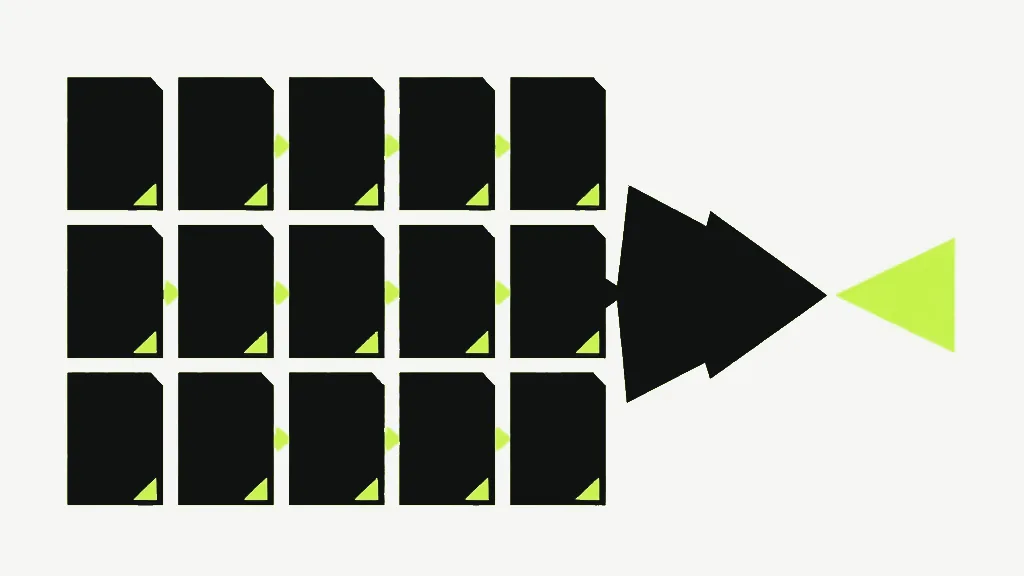
- You want the photograph that is in the document → Extract Images. Original pixels, no margins.
- You want what the page looks like → PDF to PNG or PDF to JPG. That renders the page, text and all.
- You want a scanned document's pages as images → either works, because on a scan the page IS one big image. Extract gives you the scan at its embedded resolution; converting gives you it at the DPI you choose.
The whole scan happens in your browser through pdf.js, so nothing is uploaded — and the render pass it costs is running on your device, which is why a long document takes a moment.


