How to extract pages from a PDF
Pull selected pages into a brand-new document, and understand why the page order you tap in is not the order you get.
To extract pages from a PDF, open Extract Pages, drop your file in, tap the pages you want to keep, and click Extract. A new PDF containing only those pages is built on your device and downloads; your original file is not modified.
Extracting is for when the document is fine and you only need part of it. The two pages of a forty-page lease that mention the deposit. The one appendix your colleague asked for. The signature page. You want those pages as their own PDF, and you want the other thirty-eight to stay out of it.
It is worth being precise about why that is different from sending the whole file with a note saying which pages to read. The other thirty-eight pages are still there when you do that. They are searchable, they are quotable, and they are in the hands of someone who now has them. Extraction is the difference between pointing at two pages and sending two pages.
Extract pages into a new PDF
Upload the PDF
Drop in the source document. Every page appears as a numbered tile.
Select the pages to keep
Tap each page you want. These are the pages that survive — everything else is left behind.
Extract and download
Click Extract. A new PDF containing only those pages is built on your device and downloads.
The order you tap is not the order you get
Pages always come out in their original document order, sorted ascending, no matter what sequence you tapped them in. Tap 7 then 3 and you get 3 then 7. This surprises people who expect the taps to build a running order — extraction is a filter, not a playlist. If you need pages in a different sequence, extract them first and then reorder the result with Organize Pages, which is built for exactly that.
Worked through: on a twenty-page document, tap page 9, then page 2, then page 5, and the file that downloads is three pages long and reads 2, 5, 9. Your selection is treated as a set of pages, not a sequence of instructions — it gets sorted into ascending order before a single page is copied, and there is no setting anywhere that changes that. Nothing in the interface hints at it either, because the tiles look identical whether you tapped them first or last. That is precisely why it catches people: the tool is not ignoring your order rudely, it never asked for one.
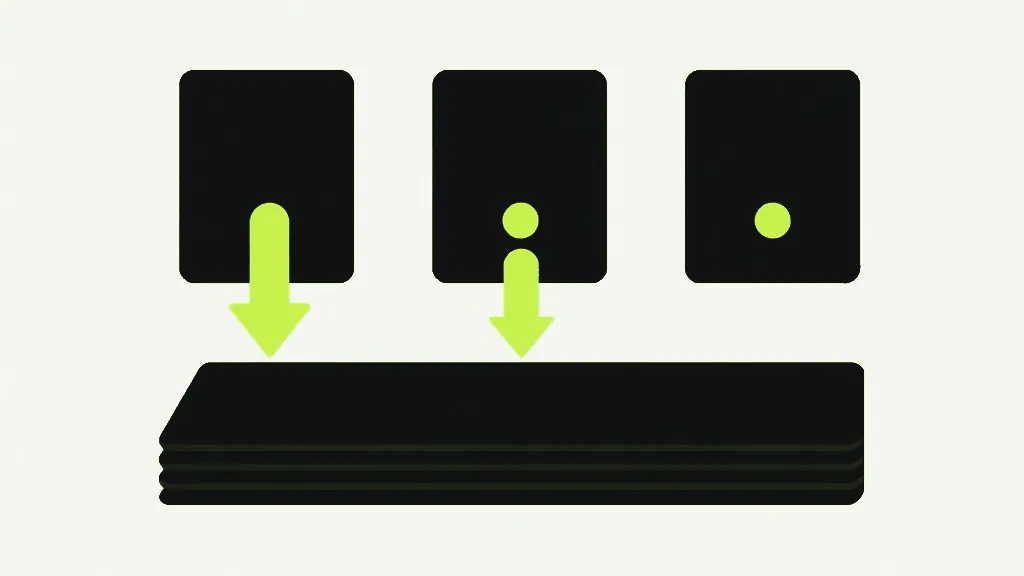
And you cannot extract the same page twice
A related limit, and the one that catches people building something rather than reading something. A tile is either selected or it is not — there is no count on it, no way to tap page 3 twice and have it appear twice. If you want a cover page repeated between sections, or a terms page after every invoice, extraction will not do it and no amount of tapping will change that.
The route that does work: extract the page you want repeated, then use Merge PDF, which happily takes the same file more than once. Add your extracted cover, then section one, then the cover again, then section two. Merge is the tool with a running order in it, and it is where every job of that shape belongs.
Nothing is re-rendered
The pages you keep are copied across exactly as they exist, so text stays selectable and searchable and images keep their original quality. An extracted page is not a picture of a page — it is the page.
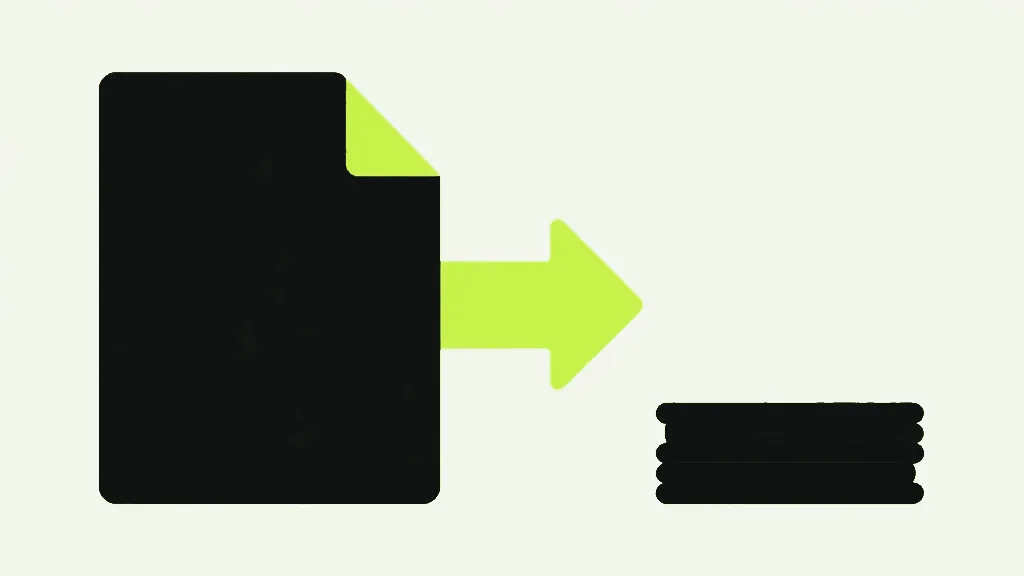
What comes back is one PDF, always — never an archive, however many pages you picked. It is named after your file with _extracted on the end, so lease.pdf gives you lease_extracted.pdf. The button counts your selection back before you commit, reading “Extract 3 pages”, and it stays disabled until you have tapped something. That single-file behaviour is the sharpest practical difference from Split PDF, which always zips, because a split hands you every piece of the document and an extraction hands you one deliberate piece of it.
What does not come with them
Because a new document is built around your pages, anything that belonged to the old document rather than to those pages stays behind: bookmarks, the title and author metadata, and interactive form fields. A fillable form that you extract stops being fillable, even though the boxes are still drawn on the page. Flatten the form first if the values matter.
Password-protected files are turned away rather than processed. That is deliberate: a protected PDF has encrypted page content, and copying that content into a new document without the password produces a file that looks fine, opens without complaint, and is completely blank. Unlock it first and extraction works normally.
Extract or split?
- You want a few pages and do not care about the rest → Extract. One file, done.
- You want the whole document carved into pieces, all of which you keep → Split.
- You want everything except a few pages → Delete Pages, fewer taps.
- You want a few pages in an order of your own choosing → Extract, then Organize Pages on the result.
- You want a page to appear more than once → Extract it, then Merge PDF.
All of it runs in your browser. The lease is read off your disk, the two pages you asked for are copied in memory, and the result is handed back to you without anything crossing a network — which, for the document you are extracting precisely because you do not want to send all of it, is the point rather than a footnote.


