How to fill in a PDF form
Complete a fillable form and save it, tell a real form from a picture of one, and lock the answers when you are done.
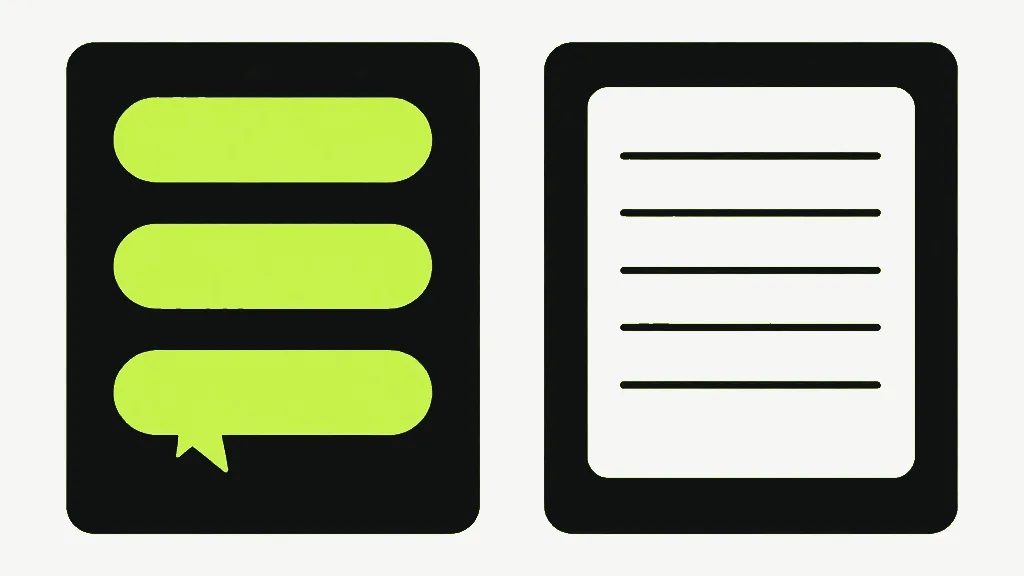
There are two kinds of PDF that look like a form, and the difference decides which tool you need. One has real fields in it: click and a cursor appears, tab and it jumps to the next box. The other is a picture of a form — printed lines, printed boxes, and nothing whatsoever to click. They look identical on screen and they are completely different files.
Fill in a PDF form
Upload the PDF
Drop in the form. It is scanned for interactive fields immediately and the count appears — "8 fields detected".
Fill the fields in
Every field gets a matching control, labelled with its real name from the file and tagged with its type. Anything already filled in arrives with its current value.
Work through the list
The fields are listed in the document's own order rather than laid over a page image, so it reads as a form to complete rather than a page to hunt across.
Save
Click Save filled PDF. Your answers are written into the real form fields and the completed copy downloads.
If it says no fields were found
Then the file has no fields, and this is by far the most common thing that goes wrong here. A great many documents that everyone calls forms are flat layouts: a scan of a paper form, a form exported from a design tool, a government PDF that was drawn rather than built. There is nothing interactive inside them. Nothing is broken, and no tool can fill a field that does not exist.
When that happens, Annotate PDF is the answer. It lets you type text straight onto the page wherever you want it, which is exactly what you would do with a pen if the thing were printed. It is not as tidy — nothing tabs, nothing aligns itself — but it works on any document at all, which a form filler fundamentally cannot.
One caveat on that message, since it overstates its own certainty. "No fillable form fields found" is also what you see if the scan itself failed — a form built in an unusual way that we could not read comes back looking identical to a flat page. It is uncommon, and the practical test takes ten seconds: open the file in any PDF reader and try clicking where a box should be. If a cursor appears there and not here, that is a bug worth reporting rather than a flat document.
What can be filled
Real interactive fields — AcroForm fields, in the format's own vocabulary — of these kinds:
- Text fields, including multi-line ones, which get a proper resizable text area rather than a single cramped line.
- Checkboxes.
- Radio button groups, with the real options read out of the file.
- Dropdowns.
- List boxes — the scrolling kind. These are the ones usually left off a supported-fields list, so it is worth knowing yours is handled at all. One caveat that matters: they are filled as single-choice. If your list box is the sort that allows several selections at once, only one of them is saved.
Signature fields are detected and deliberately left alone. They show up in the list marked as unsupported and are written back exactly as they came in, rather than being overwritten with something that looks like a signature but is not one. If you want a visible signature on the page, Sign PDF places one.
A dropdown that already has a value cannot be emptied
This is the real limitation and it deserves the plain version. If a dropdown, a radio group or a list box arrives with a value already selected, you cannot clear it here. Choosing the blank "— select —" option looks like it worked, and then the saved file still has the original value in it. The blank selection is skipped rather than applied, so the old answer survives.
Text fields and checkboxes do not have this problem. Empty a text field and it saves empty; untick a checkbox and it saves unticked. It is only the three option-based types where "none" is not a value you can write.
If you genuinely need a pre-selected dropdown to end up blank, the honest answer is that this tool will not do it — use a desktop PDF editor. What you must not do is set it to blank, see it look right on screen, and send the form assuming it went. Check the saved copy before it goes anywhere that matters.

The saved form is still a form
Your answers go into the fields as field values, which means the downloaded file is still editable — the recipient can click into a box and change what you wrote. That is the right default, and it catches people out anyway. It is what makes a form you send back correctable, and what makes a form you send onward alterable.
When the answers should be final, Flatten PDF in its "form fields only" mode turns the values into ordinary page content, so they can be read but not typed over — and the document's text stays selectable, because that mode does not rasterise anything.
A few things worth expecting
- Field names come from whoever built the form, so they can be helpful ("full_name") or not helpful at all ("Text12"). We show what is in the file rather than inventing friendlier labels.
- A field that rejects the value you gave it is skipped rather than failing the whole save — so on an unusual form, check the result rather than assuming everything landed.
- A password-protected form has to go through Unlock PDF first. It will be turned away here rather than half-processed.
- Nothing is uploaded. The form and everything you type into it stay in the browser tab.


