How to flatten a PDF
“Flatten” means two different things. Pick the wrong one and you either lose your text or fail to lock anything down.
"Flatten this PDF" is two different requests wearing the same word, and the gap between them is where the damage happens. One person means "lock the answers I typed into this form so nobody downstream can change them". The other means "make this file look identical everywhere, whatever is layered on top of it". Those are not variations on a theme. They are different operations with different costs, and picking the wrong one either destroys your text or locks nothing at all.
Flatten a PDF
Upload the PDF
Drop in the file. The mode buttons appear once the page count has been read.
Choose what to flatten
"Form fields only" is the default. "Everything to images" is the other one. The line underneath changes to describe whichever is selected.
Flatten
Click Flatten PDF. Form-fields mode is quick. Images mode renders every page and shows a progress bar while it works.
Read the result line
Form-fields mode reports how many fields it flattened. Zero is an answer, not a failure — see below.
Mode A: form fields only
This is the default, and it is the one most people actually want. It takes the interactive form fields in the document — the boxes you click into and type in — and bakes their values into the page as ordinary page content. The field stops being a field. The value stops being editable. Nobody downstream can tab into it and quietly type something else before forwarding it on.
What it does not do is turn your document into a picture. Text stays real text: selectable, searchable, copy-pasteable, sharp at any zoom, readable by a screen reader. The name and date that were sitting in form fields are now drawn on the page as text, so they are searchable too. This is the correct end of a filled form — fill it, flatten it, send it.
It also reports its own work, which matters more than it sounds. When it finishes it tells you how many fields it flattened. If the PDF had no form fields at all, it says so plainly and hands you back an unchanged copy rather than implying it did something. That number is the whole diagnostic.
And here is the trap, because "form fields only" means form fields only. Highlights, sticky notes, ink scribbles, stamps, comment bubbles — none of them are touched. They are not form fields; they are markup annotations, and the library doing this flatten cannot render them. So if you flattened a marked-up review copy expecting to lock it down, and the highlights are still individually deletable in Acrobat afterwards, the tool did not fail. You asked it the wrong question. That job belongs to the other mode.
Mode B: everything to images
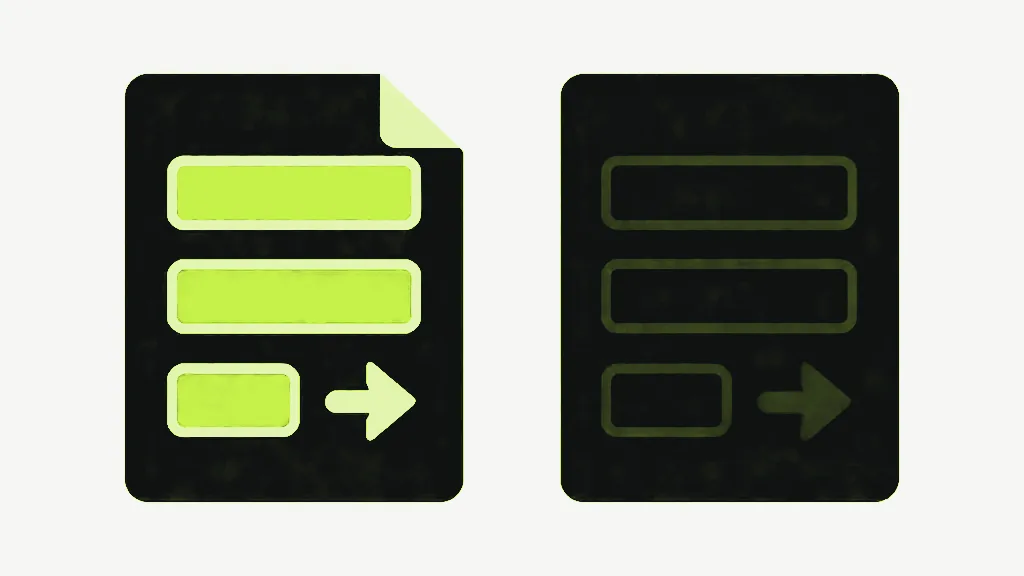
This one renders every page exactly as a viewer would draw it, then rebuilds the document with one flat image per page. Because it renders rather than reasoning about object types, everything visible gets baked in: form fields, highlights, sticky notes, layers, transparency, whatever a plugin drew last Tuesday. What you can see is what you get, and what you get is now paint.
The guarantee is real, and it is the only reason this mode exists. A rendered page cannot be re-layered, re-flowed, or reinterpreted by a viewer with different fonts installed or a different opinion about optional content groups. It looks the same everywhere, on every machine, forever.
What images mode costs you
The price list is specific, so here it is. Each page is rendered at twice PDF user space — user space is 72 DPI, so that is 144 DPI. Each rendered page is then encoded as a JPEG at quality 0.85 and embedded. JPEG is lossy. That means this is not a repackaging of your page, it is a photograph of it: hairlines soften, small text picks up faint halos, flat colour develops texture that was never there, and a second pass through the same tool would soften it again.
- Text stops being text. No selecting, no searching, no copy-paste, and nothing for a screen reader to read.
- 144 DPI is a screen resolution. It is fine to read and acceptable to print at a pinch; it is not print-shop quality.
- The JPEG is lossy, so the softening cannot be undone from the output. Keep your original.
- It is one-way. There is no unflatten, here or anywhere.
There is one silent behaviour worth knowing, because nothing in the interface mentions it. The renderer caps page width at 2400 pixels. At double scale that ceiling is only reached by pages wider than 1200 points — about 16.7 inches — so ordinary A4 and Letter documents never come near it. But wide pages exist: an A1 poster, an engineering sheet, an A2 drawing in landscape. Those are quietly rendered at whatever scale fits under the cap instead of at 144 DPI, and an A2 landscape drawing lands nearer 103 DPI. There is no warning and nothing in the result line. If you flatten large-format pages, zoom into the output before you trust it.
One thing we are not going to tell you is whether flattening makes your file bigger or smaller. It depends entirely on what was in it — a text-heavy page becomes a JPEG and can balloon; a page stuffed with high-resolution photographs can shrink as they are resampled down to 144 DPI. We have not measured it across a representative spread of real documents, so any number here would be a guess dressed up as a fact. Flattening is not a compression strategy either way; if size is the goal, compression is the tool.

Which one do you want?
- A filled form going out as final → Form fields only. Small, sharp, searchable, values locked.
- A marked-up review copy where the highlights must stay exactly where they are → Everything to images.
- A file that must render identically on a machine you do not control → Everything to images.
- A cropped document where the trimmed content must genuinely be gone rather than hidden → Everything to images, and check the result yourself.
- A text document you want to make smaller → neither of these. This is not a compression tool.
Both modes run entirely in your browser and neither uploads your file. Form-fields mode turns away a password-protected PDF with a message pointing you at Unlock PDF, rather than processing it into something broken.


