How to rearrange pages in a PDF
Drag pages into a new order visually, drop the ones you do not need, and rebuild the document in one pass.
Page order goes wrong in ordinary ways. The scanner fed the stack backwards. The appendix ended up ahead of the section it belongs to. Someone merged two files in the wrong sequence and only noticed after sending it. Reordering is the fix, and it is the one page job where seeing the pages actually matters.
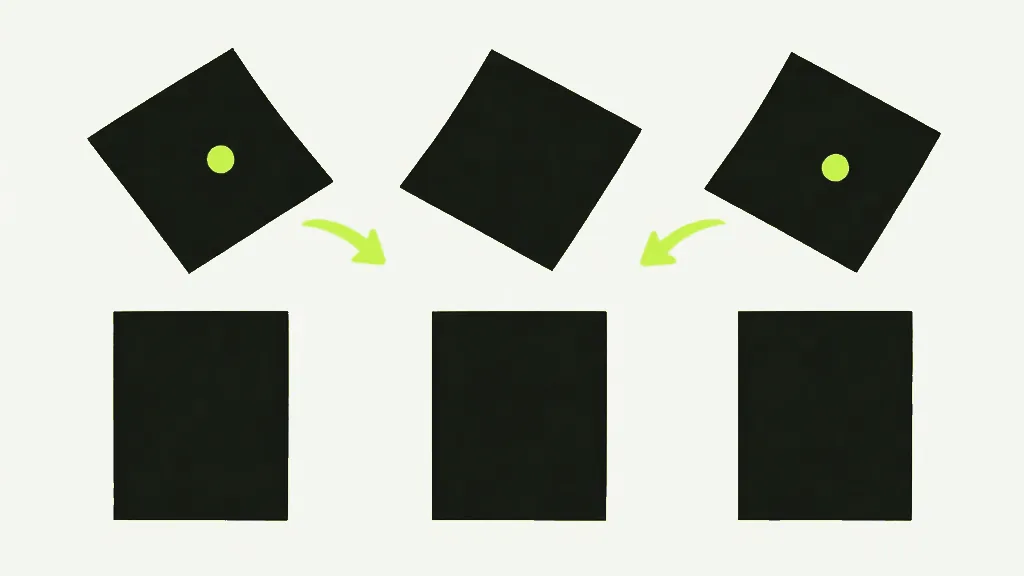
Reorder the pages in a PDF
Upload the PDF
Drop in the file. Every page is rendered as a thumbnail so you can see what you are working with.
Drag pages into order
Pick up any thumbnail and drop it where it belongs. The grid is the document.
Drop what you do not need
Each thumbnail has a remove button. Removed pages are simply left out of the new file.
Apply and download
Click Apply new order. The document is rebuilt in the sequence you set and downloads.
Reordering and deleting are one operation
This is the part that saves the most time and the least obvious. The tool does not move pages around inside your document and then separately remove some — it rebuilds the whole document from a list of the pages you kept, in the order you put them in. Dropping a page and moving a page are the same action expressed differently, so you never have to do two passes.
The list is the whole mechanism, and it is worth picturing because everything else follows from it. Behind the grid there is nothing but an ordered list of which original pages survive: a six-page file starts life as 0, 1, 2, 3, 4, 5. Drag the last page to the front and the list is 5, 0, 1, 2, 3, 4. Remove what was page 3 and the list is 5, 0, 1, 2, 4. Then that list is read left to right and a new document is built by copying those pages in that sequence. There is no delete step. There is no move step. There is one rebuild, and the list told it what to do.
If deleting is genuinely all you need, the dedicated Delete Pages tool is quicker: it skips rendering thumbnails, which is the slow part on a long document.
Thumbnails are rendered on your device
Every page is drawn to a small canvas in your own browser to make the grid. That is why a hundred-page scan takes a moment to appear and why nothing is uploaded to make it happen. It is also why this tool behaves differently from its siblings on a password-protected file: the renderer needs to actually read the page to draw it, so a protected PDF stops here with a clear message rather than getting further.
The specifics, since they explain what you are looking at. Each page is drawn at its natural size — one screen pixel per PDF point, roughly 72 DPI — and then capped at 1000 pixels wide, so an A4 page comes out around 595 pixels across and an oversized plan drawing gets scaled down to fit the ceiling. The result is stored as a JPEG at 85% quality, which is why fine print in a thumbnail looks soft. None of that touches your document. The thumbnail is a disposable picture made to be looked at; the page that gets copied into the output is the original, untouched, at full quality. If a thumbnail looks blurry, that is the thumbnail, not your file.
Removing a page has no undo of its own
The remove button on a thumbnail takes that page out of the grid, and there is no per-page way to put it back. The only route back is Reset, which restores the entire original arrangement — every page returns, and every move you made is undone with them. On a long document where you have carefully dragged fifteen pages into place and then removed the wrong one, that is a genuinely annoying trade, and it is better to know about it before it happens than after. Remove last, once the order is right.
Removing everything is not an error so much as a dead end: the grid empties, the line “Every page was removed — restore at least one to continue.” appears underneath it, and Apply switches off. Reset brings the document back. Nothing is lost, because nothing was ever done to the file on your disk — the grid is a plan, and the plan only becomes a document when you click Apply.
Reordering costs nothing in quality
Pages are copied into their new positions, never re-rendered, so text stays real text and images keep their exact quality. What does not survive is anything that lived at the document level rather than on a page: bookmarks, title and author metadata, and interactive form fields. A fillable form comes out looking identical and no longer fillable. That is worth knowing before you reorder a form you were about to send someone.
If nothing changed, nothing downloads
The Apply button stays disabled until you have actually moved or removed something. There is no point handing you a rebuilt copy of a document you did not change — you already have that file.
Two details make the grid readable while you work. A counter reads “12 of 14 kept”, so you always know how many pages the output will have without counting tiles. And any page that has moved carries its old number under it — a tile showing “3 (was 8)” is telling you it is now third and it started eighth. On a scan that was fed in backwards, those labels are the fastest way to confirm you reversed everything and not almost everything. The result downloads as your filename with _organized on the end.


