How to split a PDF into separate files
Cut one PDF into several, either every N pages or at points you choose — and why typing “3-7” does not do what you think.
Some documents are really several documents wearing a trenchcoat. A month of scanned invoices saved as one file. A bank statement covering a year. A deck where each section belongs to a different person and only one of them should see the whole thing. Splitting is how you get them apart.
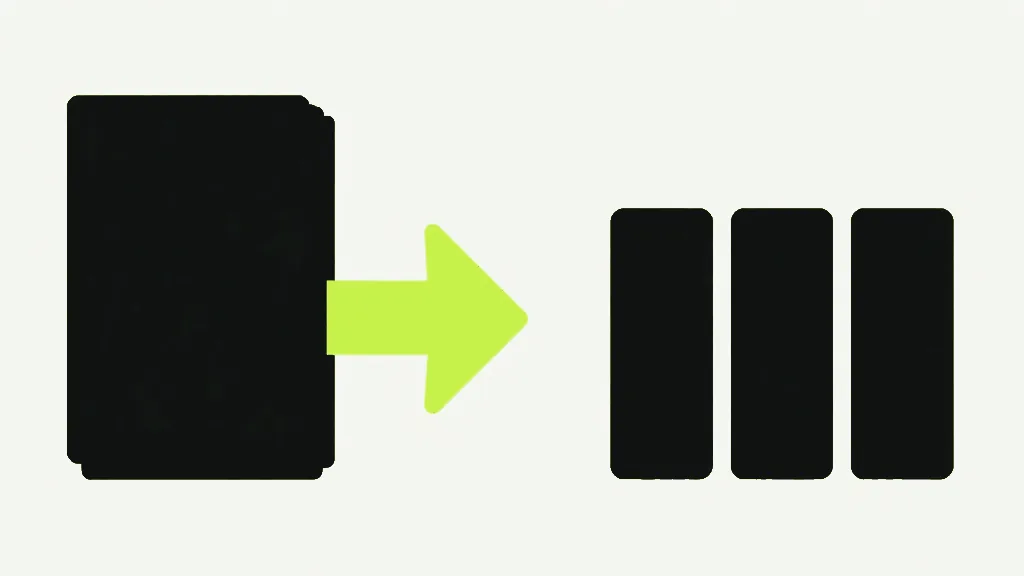
Split a PDF
Upload the PDF
Drop in the file you want to divide. The page count appears once it has been read.
Choose how to cut it
Every N pages for regular structure — a stack of two-page invoices becomes one file per invoice. At page numbers for everything else.
Set your split points
Type an interval, or a list like 3, 7, 10. Each number is where a segment ENDS.
Split and download
Click Split PDF. The pieces are built on your device and arrive together in one .zip.
Two modes, and the default takes every page apart
Every N pages is the mode for documents with regular structure, and the thing to know about it is that the box arrives set to 1. Leave it alone on a forty-page file and you get forty PDFs, one per page. That is occasionally exactly the job — a scanned stack of single-sheet receipts, say — and it is more often a surprise, so set the number before you click rather than after.
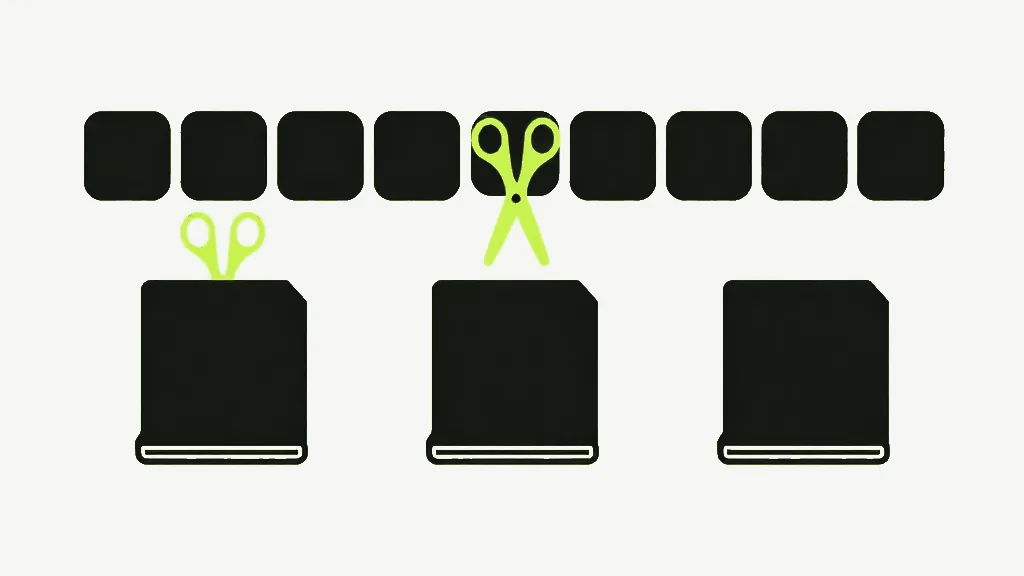
The arithmetic gets interesting at the end of a document, because the last group takes whatever is left rather than borrowing from the one before it. Ten pages split every three gives you four files, not three: pages 1–3, 4–6, 7–9, and then page 10 sitting on its own. That runt file at the end is worth reading as a signal. If you split a stack of two-page invoices in twos and the last file has one page in it, the stack was not what you thought it was — something upstream lost or gained a sheet, and you have just found out cheaply.
Typing “3-7” does not give you pages 3 to 7
This is the mistake worth knowing before you make it. There is no range mode — every number you type is read as a point to cut after, and the hyphen is just a separator. So “3-7” on a ten-page file is read as “cut after 3, cut after 7” and hands you three files: pages 1–3, 4–7, and 8–10. That third file is the one nobody expects. If you want a specific run of pages and nothing else, Extract Pages is the tool you actually want.
Where the numbers land
Split points end segments rather than start them, which reads backwards for about the first minute and then becomes obvious. On a ten-page document, typing 3, 7 gives you pages 1–3, then 4–7, then 8–10 — three files from two cuts, because the tail after the last cut is a file too.
- Commas, spaces and hyphens all separate numbers identically — 3,7 and 3 7 and 3-7 are the same input.
- Numbers past the last page are ignored rather than producing an empty file.
- Duplicates collapse, so 2,2,2 cuts once.
- If every number you type is out of range, the split is refused rather than handing you back a copy of what you started with.
- Anything that is not a digit is a separator, so a decimal point does not survive contact with this box: “3.5” is read as two cuts, after page 3 and after page 5.
Two edges are worth naming because the error messages are the only place they surface. A cut placed on the very last page is discarded rather than producing an empty tail — cutting a ten-page file after page 10 asks for nothing to happen — and if that was your only cut, the split stops with “These settings produce only one file — nothing to split.” A box with no digits in it at all stops one step earlier, with “Enter at least one page number to split at.” Neither is a failure. Both are the tool declining to charge you a download for a copy of your own document.
Why it is always a .zip
Even two pieces arrive zipped. The alternative is firing a dozen download prompts at your browser and hoping it lets all of them through, which it often will not. Settings that would produce a single file are refused with an explanation instead — a “split” that returns one document is not a split, it is your original with extra steps.
Inside the archive, the pieces are named after your file with their page range on the end. A ten-page report.pdf cut at 3 and 7 comes back as report_1-3.pdf, report_4-7.pdf and report_8-10.pdf, in an archive called report_split.zip. A segment that is only one page long gets a single number rather than a range, so a lone page 10 arrives as report_10.pdf. The names are the manifest: you can tell what is in every piece without opening any of them, which on a forty-file archive is the difference between a minute and an afternoon.
Nothing is re-rendered
Pages are copied across as they already exist rather than redrawn, so every output keeps the exact text and image quality of the source. Split a file, merge the pieces back, and you are where you started. That is worth checking for in any tool: anything that rasterises pages on the way through will quietly cost you selectable text.
One thing a split does not carry across: bookmarks, document metadata, and interactive form fields live at the document level rather than on the pages, so they do not follow the pages into their new homes. If a form has values that matter, flatten it first so the answers become part of the page. If the file is password-protected, unlock it first — a protected PDF is turned away rather than processed into something unreadable.


