Why you cannot select the text in a scanned PDF
A scan is a photograph of a document, not a document. Your eyes read it; your cursor finds nothing there.
You open a scanned PDF, you can read every word on the page, and you cannot select a single one of them. Ctrl+F finds nothing. Your eyes say this is a document; your cursor says there is nothing here. Your cursor is right.
A scan is a photograph of a document, not a document
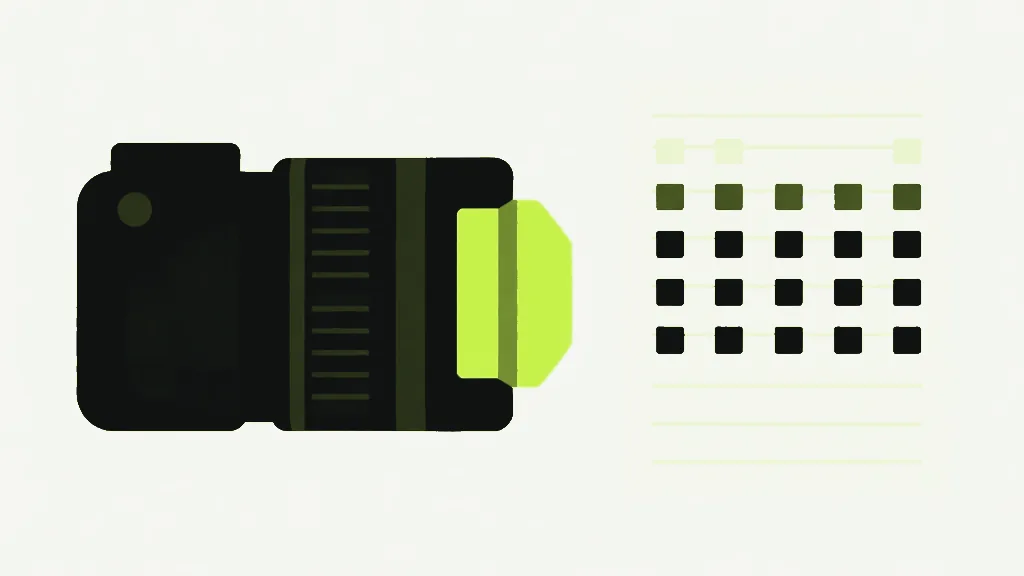
A scanner does not read your page. A scanner measures light. It runs a sensor across the paper and records how bright each tiny square of it was — millions of squares, each one a number. What comes out is a grid of brightness values, exactly the same kind of thing your phone produces when you photograph a cat. The scanner has no idea that some of those dark squares happen to form the word "invoice". It never looked for words. It looked at light.
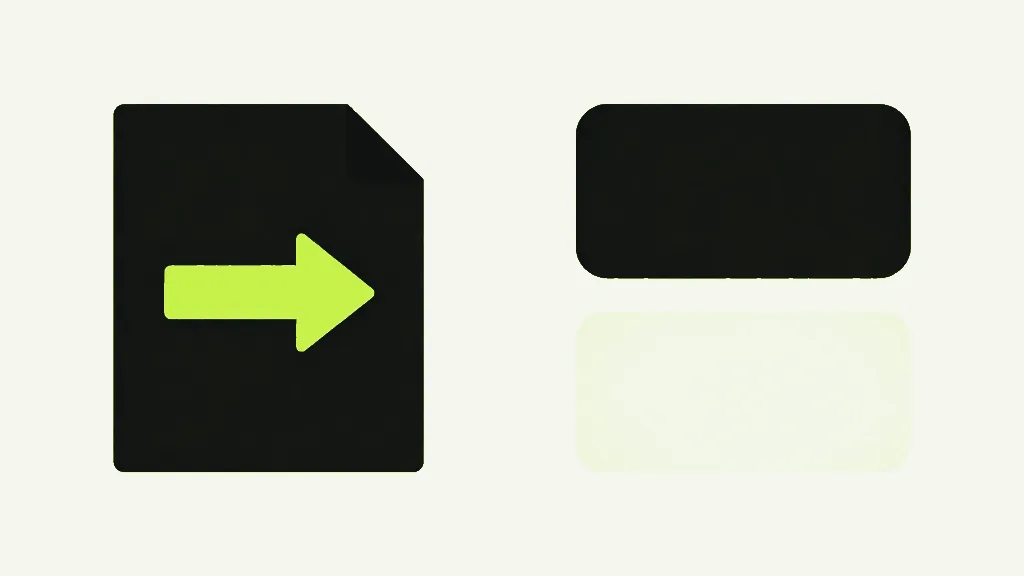
The PDF around that grid is a wrapper. Someone had to put the photograph somewhere, and PDF is the format people send documents in, so the scanner app makes a PDF with one page and pastes one enormous picture onto it. The result has a .pdf extension and opens in Acrobat and prints like a document — and it contains no text whatsoever. Not hidden text, not locked text. There was never any text in it. You are reading the picture, the way you read a photograph of a road sign.
Why your eyes disagree with your cursor
Reading is something you do, not something the file does. Your visual system is extraordinarily good at pulling letterforms out of a field of light and dark — so good that the work is invisible to you and feels like the words are simply present. They are not present. You are manufacturing them, in your head, from contrast. The cursor cannot do that. The cursor asks the file "what characters are at this coordinate", and a photograph has no answer, because a photograph stores squares and not characters.
That gap between what you perceive and what the file holds is the single most common misunderstanding about PDFs, and almost every frustration with scans comes out of it. The file is not being difficult or broken or corrupted. It is doing exactly what a picture does.
How to tell in five seconds
Two tests, and either one settles it. Try to select a word: click and drag across a line of text. If you get a clean text selection that follows the words, there is real text in the file. If you get a blue box that ignores the letters completely — or nothing at all — you have a picture. Then try to search: press Ctrl+F and type a word you can plainly see on screen. If the search finds nothing while the word is sitting there in front of you, that settles it. The word is not in the file. It is in the picture, and the search does not look at pictures.
A file can be half and half, and this is where people get caught out. A report can have twenty real text pages and one scanned signature page pasted in at the end. Selection works everywhere except that page. The document is not inconsistent — it is a container, and each page can hold whatever it likes.
Why this makes every tool behave the way it does
Tools inherit the limitation, because a tool cannot use text that was never there. This explains a handful of behaviours that look like bugs and are not.
- Extracting images from a scan gives you the page, not the figures. Extract Images pulls out the actual embedded pictures a page draws — and a scanned page draws exactly one picture, which is the whole page. So you get one enormous image per page, chart and photo and text and coffee stain all baked together. The chart is not a separate object it could hand you; it is some dark squares inside the big rectangle.
- Converting to images can only ever give you a picture back. Rendering a scanned page produces a photograph of a photograph. Nothing is recovered, because there is nothing to recover.
- Search, copy, screen readers and text-to-speech all come up empty on the same page, for the same reason.
- Editing the words is not on the table. You would be editing pixels, which is retouching, not editing.
What OCR is, and what it costs
OCR — optical character recognition — is software that looks at the picture and guesses the words. It hunts for letter-shaped clusters of dark pixels, matches them against models of what letters look like, and writes out its best guess as actual text, usually layered invisibly over the image so the page still looks like a scan but can now be searched. That is the only way a scan becomes searchable. There is no other route, and no clever trick that skips the guessing step.
Two things worth knowing before you go looking for it. First, it guesses, and the guesses are wrong sometimes — badly wrong on poor scans, handwriting, unusual fonts, tables, columns, faint fax output, or anything photographed at an angle. A good OCR pass on a clean 300 DPI scan is very accurate. A pass on a crumpled receipt shot in a dim kitchen is a lottery. Second, it is genuinely expensive to run: it needs a trained model and real processing, which is why the tools that do it well are either desktop applications or server-side services.
BabaPDF has no OCR, anywhere
Nothing on this site will make a scanned PDF searchable. There is no OCR in any tool here, there is no hidden setting for it, and it is not coming as a checkbox on some existing page. If you need the text out of a scan, you need different software than this. That is the most useful sentence on this page, so it gets said plainly rather than buried in a FAQ.
Reach for Adobe Acrobat Pro if you have it, which OCRs well and in bulk. Google Drive will do a reasonable job free: upload the PDF and open it with Google Docs, and it hands back the recognised text. On a Mac, Preview will let you select text in images. ABBYY FineReader is the specialist option if you do this all day and accuracy matters more than the price. On Linux or in a script, Tesseract is free and good. Any of those will beat a PDF site that quietly promises it and disappoints you.
What this site is still good for on a scan
Everything that treats the page as a page rather than as words. You can merge scans, split them, delete and reorder pages, rotate the ones that came in sideways, crop the scanner shadow off the edges, stamp page numbers or a watermark on them, sign them, and shrink them. None of that needs to know what the page says — it only needs to move the picture around, and moving pictures around is most of what people do with scans.
Compression in particular is where a scan actually rewards you, because a scan is where the megabytes are. A photograph of a page is enormous compared to the same page stored as text, which is the whole reason your PDF is 40MB when a much longer report is under a megabyte.
The deeper version of this
Scans are one case of a split that runs through the whole format: a PDF page can hold instructions or it can hold pixels, and the two behave completely differently forever after. A scan is a page with nothing but pixels on it, which is why it is the most extreme version of the problem — but the same rule quietly decides what you can do with every file you own. That is worth understanding once properly, and it is laid out in vector and raster in a PDF.
Why can you not select text in a scanned PDF?
- A scan is a photograph of a document. The PDF is just a wrapper around the picture.
- You can read it because you are good at reading pictures. The file has no words in it.
- Test it in five seconds: try to select a word, try to search for a word you can see.
- Only OCR fixes this, by guessing the words from the pixels — and it is not always right.
- There is no OCR on this site. Use Acrobat, Google Drive, FineReader or Tesseract instead.
- Everything that treats a scan as a page rather than as words still works fine here.