Vector and raster: the two kinds of mark in a PDF
Why some PDFs stay razor sharp at any zoom, why others turn to mush, and why turning one into the other is a one-way trip.
There are exactly two kinds of mark that can appear on a PDF page, and almost every surprising thing a PDF does traces back to which one you are looking at. One kind stays perfectly sharp no matter how far you zoom. The other turns to mush. They sit side by side on the same page and look identical until the moment they do not.
Vector marks are instructions
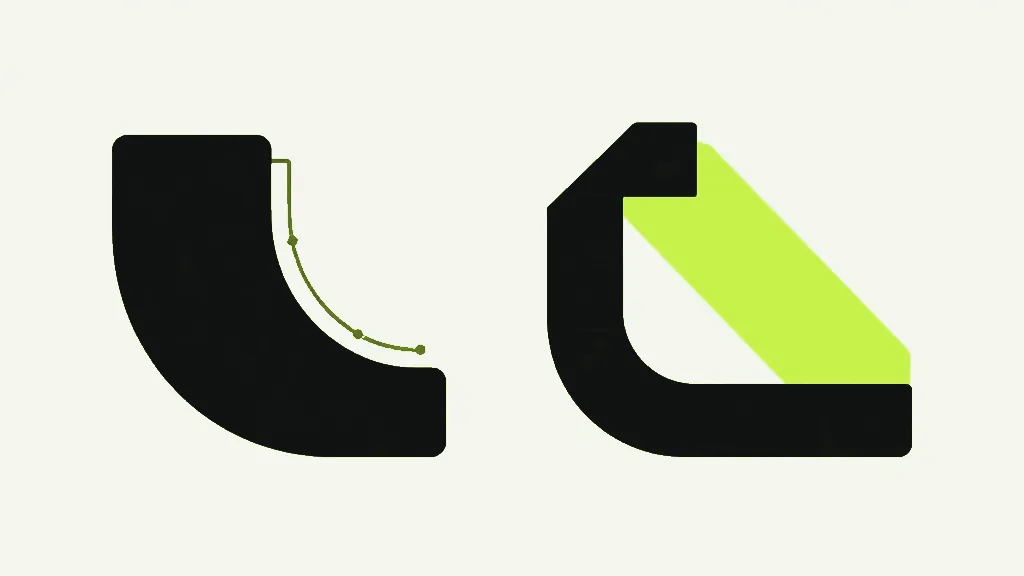
A vector mark is a recipe, not a picture. The file does not store what the letter "g" looks like as an arrangement of dots — it stores something closer to "at this position, in this font, at this size, draw this glyph", and separately "draw a line from here to here, two units thick". Nothing has been decided about pixels. The instructions describe shapes in an abstract coordinate space, and the shapes have no resolution at all, in the same way the instruction "draw a circle" has no resolution.
The resolution gets decided at the last possible moment, by whatever is doing the drawing. Open the page on a laptop and the viewer follows the recipe at the laptop screen's resolution. Zoom to 400% and it follows the same recipe again, at four times the detail — not by enlarging what it drew before, but by re-drawing from scratch. Send it to a 1200 DPI printer and the printer follows the recipe at 1200 DPI. The marks are as sharp as the device can possibly make them, every time, because the device is not copying a picture, it is executing instructions.
Instructions are also almost free. "Draw this glyph here" is a handful of bytes. A whole page of text is a few kilobytes of them, which is why a three-hundred-page contract can be smaller than a single photograph.
Raster marks are a grid of pixels
A raster mark is a photograph: a fixed grid of coloured squares, decided at the moment of capture and frozen there. A phone camera produces one. A scanner produces one. A screenshot is one. The grid has a specific number of squares across and down, and that number is the entire ceiling of what the image will ever contain. There is no recipe underneath to re-run at higher detail — there is only the grid.
So enlarging a raster mark cannot add anything. When you zoom to 400% on a photograph, the viewer has four times the screen area and exactly the same number of real squares, so it invents the difference: it smears neighbouring squares into each other and hands you a soft, blurry version of what you had. That is what "going soft when enlarged" actually is. Not a quality setting, not a compression artefact — the arithmetic ran out of squares.
A raster image is also expensive, because every square costs bytes and there are a great many squares. A page-sized image at 300 DPI is roughly 8.7 million of them. The bytes are why files get so large; the fixed grid is why they get soft.
A single page routinely holds both
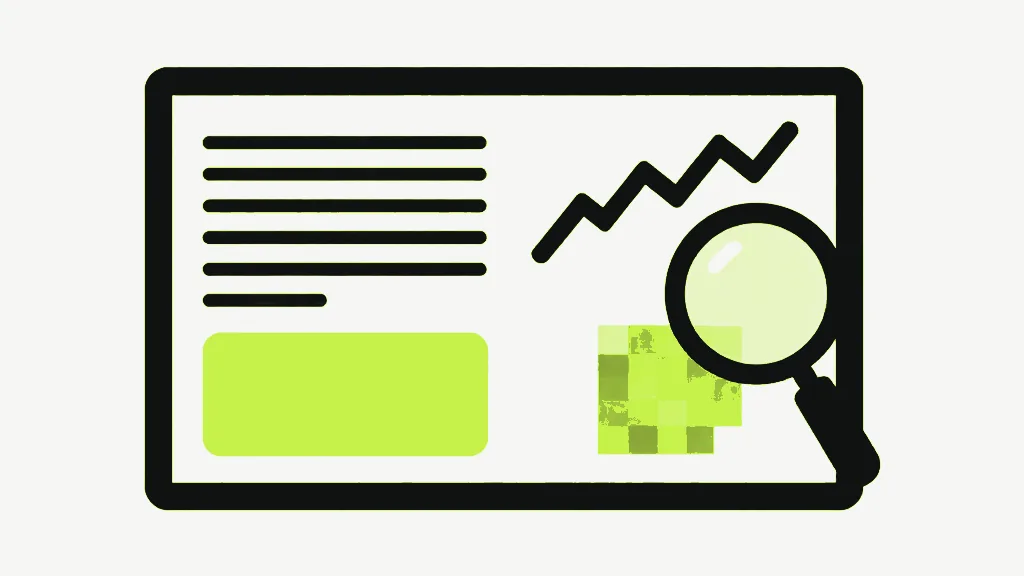
PDF pages mix the two freely, and this is what makes the whole thing confusing in practice. A typical quarterly report page has vector text for the body copy, a vector chart drawn as real lines and shapes, a raster photograph of the new office, and a raster logo because someone pasted a PNG in 2016 and nobody has questioned it since. All four sit on one page. All four look fine at 100%.
Zoom to 500% and the page tells on itself immediately. The body text is still crisp. The chart lines are still hairline sharp. The photograph has gone to mush, which is expected and fine. And the logo has gone to mush too, which is not fine, and is the reason your brand team keeps asking why the logo looks bad in print. The logo is a picture of a logo. The text next to it is not.
This is the fastest diagnostic in the format, and it costs nothing. Zoom hard on anything you are unsure about. Whatever stays sharp is instructions. Whatever dissolves into squares is pixels. You now know more about the file than its metadata will tell you.
Why this decides everything downstream
Which kind of mark you have determines what any tool can do for you, and the tools are not being inconsistent when they behave differently on different files. Vector text can be searched, selected, copied, read aloud by a screen reader, re-flowed, and printed at any resolution. Raster pixels can be none of those things, ever. That is the same wall a scan hits, which is why a scanned PDF has no selectable text — a scan is simply a page where every mark is raster.
Compression follows the same split. Squeezing a raster image works well, because there is a lot of redundancy in eight million squares. Squeezing vector text achieves nothing, because there was nothing expensive in there to squeeze. A compression tool that dramatically shrinks a text document did not compress it — it converted it.
What rasterising a page actually does, with numbers
Rasterising means running the instructions one final time, at a resolution you choose, and keeping only the pixels that fall out. The recipe is then thrown away. It is worth knowing the exact resolutions, because they are the whole quality question and most tools will not tell you.
PDF user space is 72 DPI at scale 1 — that is the format's own unit, and every figure below comes out of it. PDF to PNG and PDF to JPG render at a scale of 1.5 for Standard, giving 108 DPI, or a scale of 3 for High, giving 216 DPI. Those are exact, not approximate-in-practice: there is no maximum-width clamp in that code path, so a page is rendered at the scale you picked regardless of how big it is. Multiply 72 by the scale and that is your answer.
Flatten PDF in its "everything to images" mode is a different number again: scale 2, so 144 DPI, encoded as JPEG at quality 0.85. It also clamps at 2400 pixels wide, which only bites on pages wider than 1200 points — A4 is 595 and US Letter is 612, so a normal page is never touched by it, and a large-format poster is.
Rasterising is one-way
Nothing gets the instructions back. Once a page is pixels, the recipe that produced them does not exist anywhere in the file, and no tool on this site or any other can reconstruct it. This is the part people expect to be reversible and it is not, in the same way you cannot un-bake a cake by photographing it carefully. A 144 DPI raster of a page is not a low-resolution copy of the vector page that a better tool could refresh — it is all that is left.
The practical consequence: keep the original. If you flatten a file to guarantee its appearance, or export pages to images, or compress a document to death, do it to a copy and keep the version that still has instructions in it. Re-rasterising the vector original at a higher resolution takes seconds and is perfect. Un-rasterising takes forever and is impossible.
A very common way to destroy a document by accident: print to PDF, or "flatten for safety", or run it through a tool that rasterises silently to make the file size look impressive — then delete the original because you now have a PDF and a PDF is a PDF. Six months later someone needs to search it, or print it at poster size, and the answer is that the document is gone and what you have is a picture of it.
When you actually want raster
Rasterising is a legitimate choice and sometimes the right one, which is why the tools offer it rather than hiding it. Making a page into a picture guarantees it looks the same for everyone, because there is nothing left to interpret — no fonts to substitute, no transparency to handle differently, no annotation your reader's viewer draws its own way. You are handing over the finished image instead of the recipe and hoping their oven matches.
It is also how you genuinely remove content rather than hiding it, and how you stop a form being edited. Both of those are real needs. The point is that it should be a decision you make deliberately, with the trade in front of you — sharpness and searchability, traded for certainty — and not something a tool does to your file quietly while reporting a smaller number.
Vector or raster: how do you tell which is which?
- Vector = instructions. Resolved by the device, sharp at any zoom, tiny, searchable.
- Raster = a fixed grid of pixels. Frozen at capture, soft when enlarged, expensive.
- One page holds both. Zoom to 500% — whatever dissolves into squares is raster.
- PDF to PNG and PDF to JPG render at 108 DPI (scale 1.5) or 216 DPI (scale 3), from 72 DPI user space.
- Flatten to images uses scale 2 — 144 DPI — as JPEG at quality 0.85.
- Rasterising is one-way. Nothing recovers the instructions. Keep the original.