How to add page numbers in Adobe Acrobat — and free, without it
In Acrobat, page numbers live under Edit, then Header and Footer, then Add. You can also stamp them free in your browser with no sign-in — just straighten any rotated pages first.
To add page numbers the way Adobe Acrobat does, without Acrobat, open Add Page Numbers, pick a corner and a format, and download the stamped copy. It runs in your browser, so nothing is uploaded and there is no sign-in. The numbers are real embedded text, not a picture pasted on top.
People search for this inside Acrobat because that is the app on the work laptop. But the control is not where most people look for it, it changed places between Acrobat versions, and the top result on this very search is someone who opened the menu and could not find the option at all. So here is where it lives in Acrobat, and here is how to do the same job without paying for it.
How do I add page numbers in Adobe Acrobat?
In current Acrobat, select Edit on the top bar, then Header and Footer, then Add. Click into the left, center or right box, click Insert Page Number, and set the style and starting number before you click OK. Page numbers are part of the Header and Footer tool, not a menu item of their own.
The naming is the trap. Acrobat has a separate feature literally called Number Pages, and it does not stamp anything onto the paper — it relabels the thumbnails in the page panel. If you want a number that prints, you want Header and Footer. If you want the little "iv" under a thumbnail to match a printed number, you want Number Pages. They are different jobs with confusingly similar names, and picking the wrong one is the most common way this goes sideways.
How do I add page numbers to a PDF for free, without Acrobat?
Open the browser tool, drop the file in, and the numbering controls appear under the page count. Choose one of six positions, one of three formats, and a starting number. Every page is stamped and the numbered copy downloads. Your original file is never touched and never leaves the tab.
Open the file
Drop your PDF in. The page count reads, and the position, format and start controls appear beneath it.
Pick a position
Six spots — three across the top, three across the bottom. Bottom center is the default and is right most of the time.
Pick a format
Just the number (3), Page and the number (Page 3), or the number with the total (3 of 12).
Set a starting number
Leave it at 1, or set it to the number this document continues from. The total, in the "n of total" format, becomes the last number printed, not the page count.
Add page numbers
Every page is stamped in 11pt Helvetica and the numbered copy downloads. The original is left as it was.

Why can’t Adobe Reader add page numbers?
Adobe Reader can only display a PDF, not change it. Adding a number that prints means writing new content into the file, and that is an Acrobat feature, not a Reader one. The page-number box you can toggle in Reader shows the viewer’s own count in the toolbar; it changes nothing inside the file and disappears the moment someone opens it elsewhere.
This is the same wall that sends people to a browser tool. The free tool above writes real numbers into the document itself, so they travel with the file, print, and stay searchable — none of which a Reader display setting can do.
What happens to a page that is rotated?
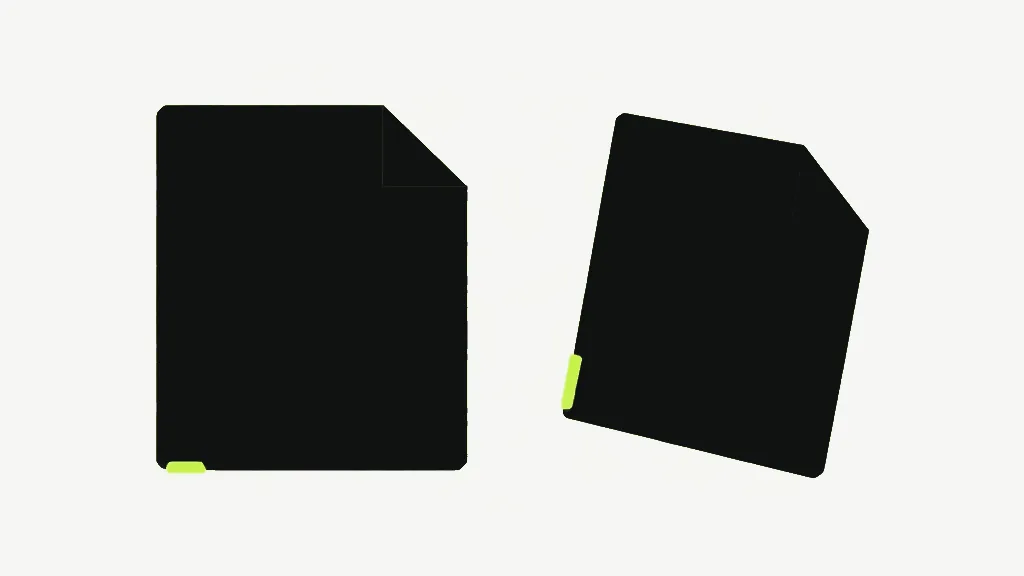
This is the one Acrobat handles and the free tool does not, so check for it before you send anything. The number is drawn in the page’s original, unrotated coordinates. On a page you rotated 90 degrees — a scanned landscape sheet, say — bottom center is computed as if the page were still upright, so the number lands along what now looks like a side edge and reads sideways. Acrobat’s Header and Footer tool places the number relative to the rotated view instead, so it sits where you expect. If your document has rotated pages, straighten them first or expect the number in an odd spot.
The workaround is one step: rotate the page to its final upright orientation before numbering, not after. Once every page sits the way it will be read, bottom center is bottom center for all of them and the numbers line up.
Does adding page numbers change anything else in the file?
No. The number is stamped onto each existing page, so everything else stays exactly as it was — form fields you can still fill, bookmarks, and the Title and Author in the document properties all survive untouched. This tool edits the page in place rather than rebuilding the document, which is why nothing at the document level is lost.
That is worth knowing because some free page-number tools rebuild the PDF from copied pages, and rebuilding is what quietly drops form fields, bookmarks and the title. If you have a fillable form or a bookmarked report, numbering it here leaves all of that in place.
Can I add Bates numbering like Acrobat Pro?
No. Bates numbering — the sequential legal stamp with a prefix, like ABC-000123, often running unbroken across a whole set of documents — is not something this tool does. It is also not in plain Acrobat: Bates numbering is an Acrobat Pro feature, behind the paid tier, alongside the redaction and Print Production tools.
What this tool offers is the three plain formats — the bare number, "Page 3", and "3 of 12" — with no prefix, no Roman numerals and no per-section restart. For a contract, a manual or a merged report that just needs readable numbers, that is the whole job. For a legal production that needs a fixed prefix and a continuous count across files, Bates numbering in Acrobat Pro is the honest answer, and no browser tool here replaces it.
For the numbering mechanics in depth — the cover-page round trip, why "3 of 12" does not mean twelve pages, and the missing collision check — the plain walkthrough is how to add page numbers to a PDF. For why a tool’s idea of "page 3" and the printed 3 so often disagree, see why "page 1" of a PDF isn’t always the first page.