How to convert Word to PDF
Turn a Word .docx into a PDF with real, selectable text, in your browser and with no upload. Headers, footers and exact page breaks do not carry over; footnotes move to the end as numbered notes.
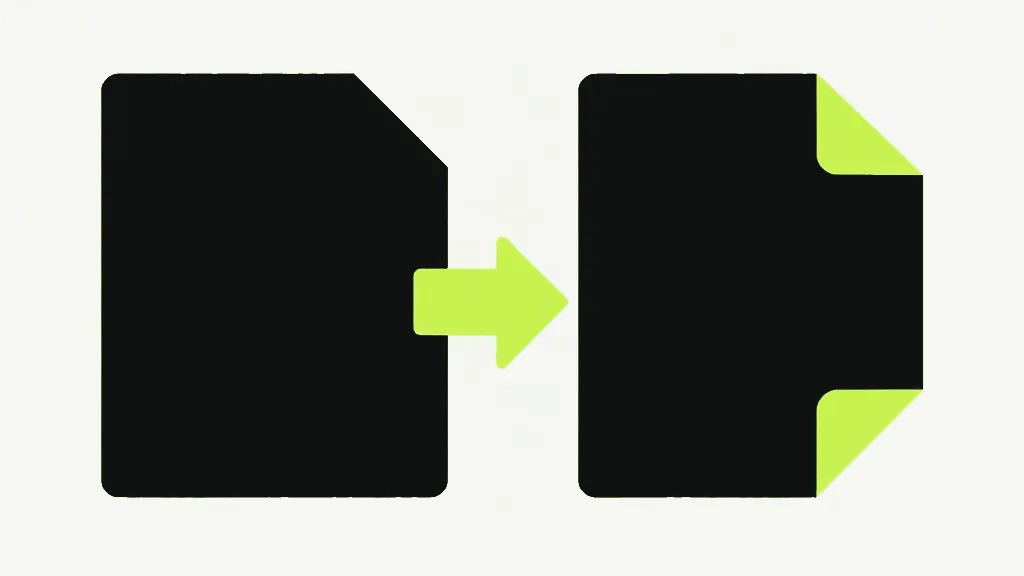
To convert a Word document to PDF, open Word to PDF, choose your .docx, and download the PDF — in your browser, with nothing uploaded. The text in the PDF is real, selectable text rather than a picture of the page, so it stays searchable and copyable.
How to do it
Open Word to PDF
Go to Word to PDF. It runs in your browser — no account, no install.
Choose your .docx
Pick a modern Word .docx file. An old .doc will not work directly; open it in Word or Google Docs and use Save As to make a .docx first — the tool will tell you if you hand it the old format.
Pick a page size
Choose A4 or Letter, to match wherever the PDF is going.
Download the PDF
The tool rebuilds the document — headings, bold and italic, lists, tables and inline images — and lays it out as a PDF with a real text layer. Save it and it opens anywhere a PDF does.
Converting a spreadsheet instead? Excel to PDF has its own guide.
Word to PDFConvert a Word .docx into a PDF with real, selectable text.Why the text stays selectable
Some converters turn each page into an image — a picture of your document. This one does not: it places real vector glyphs, so you can select, copy and search the text in the PDF, and it stays sharp at any zoom. The fonts it uses (Noto Sans, covering Latin, Greek and Cyrillic) are bundled with the site, so even those are not fetched from anywhere.
What does not carry over
- Headers and footers. Footnotes do survive, but not in place: they move to the end of the document as numbered notes, with a bracketed number where each one was referenced.
- Exact page breaks — the content reflows to fit the page size you chose.
- Complex or merged-cell tables, which reflow to fit rather than holding their exact grid.
- Scripts beyond Latin, Greek and Cyrillic — Noto Sans does not include Chinese, Japanese or Korean, so those are out of scope.
The layout is rebuilt from the document's content, not cloned from Word. That is the honest trade for doing it in your browser with no upload: the words, styles and structure come across, but a header or a hand-placed page break is not reproduced. If a pixel-perfect copy matters more than a real text layer, print to PDF from Word itself.