How to convert a PDF to Word
Turn a text-based PDF into an editable .docx in your browser — text, headings, bold and italic come back; tables, images and exact layout do not.
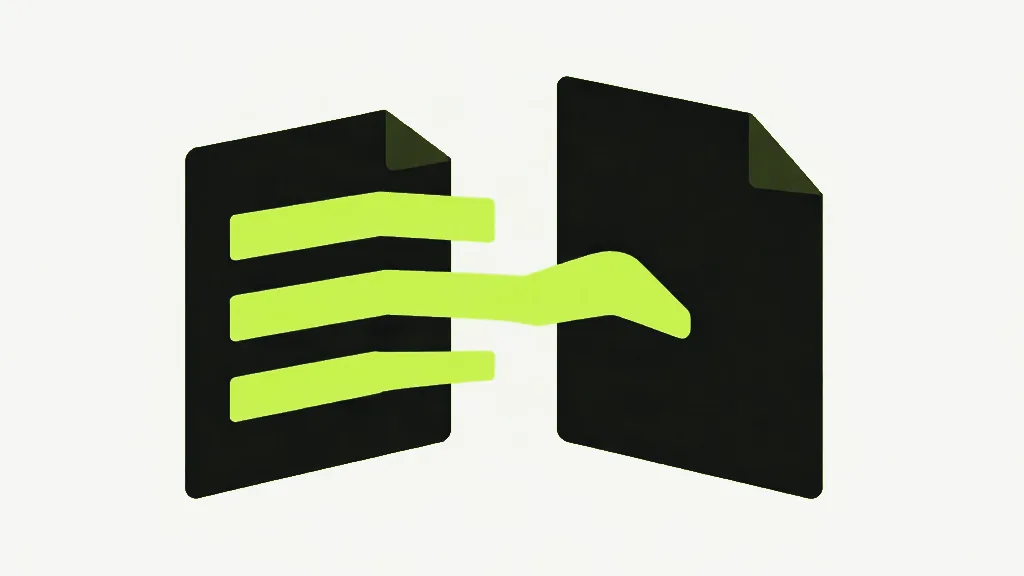
To convert a PDF to Word, open the PDF to Word tool, choose your file, and download the .docx it produces — entirely in your browser, with nothing uploaded. What you get back is the real, editable text, not a picture of it. It works when the PDF already has selectable text; a scanned PDF needs a text layer added first.
How to do it
Open PDF to Word
Go to PDF to Word. It loads in your browser — no account, nothing to install.
Choose a text-based PDF
Pick a PDF that has real, selectable text — one exported from Word, a browser or another program, rather than a photo or a scan. The quick test: if you can highlight the text in a PDF viewer, this tool can read it.
Let it rebuild the document
The tool reads the text, works out where paragraphs and headings are from their size and spacing, and keeps bold and italic. This runs on your own device, so a long document depends on your hardware, not a connection.
Download the .docx
Save the Word file and open it in Word, Google Docs or LibreOffice. The text is real and editable — you can retype, restyle and reflow it like anything you wrote yourself.
What comes back — and what does not
It helps to know which is which before you start, because a PDF does not store a document the way Word does. What survives:
- The text itself, fully editable — not an image of it.
- Paragraphs, rejoined from the wrapped lines of the PDF.
- Two levels of heading, inferred from how much larger the text is than the body.
- Bold and italic, read from the actual font each word uses.
What does not:
- Tables — their cells come through as ordinary paragraphs, not as a table.
- Images, headers and footers, which are not reconstructed.
- The exact page layout. Columns can interleave, because the reading order is inferred; the result is a clean single flow of text, not a pixel copy of the pages.
This is a content reconstruction, not a faithful reverse of Word-to-PDF. A PDF stores only glyphs pinned at x/y positions, not paragraphs or tables, so the tool infers the structure and is honest where it has to guess. If you need the result to look pixel-identical to the PDF, that is not something any PDF-to-Word conversion can give you. (The same reconstruction feeds PDF to Markdown if you want Markdown instead.)
When it will not work
Two cases stop the tool rather than handing you a bad file. A scanned PDF has no text layer at all — just an image of a page — so there is nothing to extract; run OCR PDF first to add a searchable text layer, then convert. And a password-protected PDF has to be opened first with Unlock PDF. In both cases the tool tells you what to do instead of producing a blank document.