How to convert JPG to PDF on Windows — Print to PDF, or a browser tab
To convert a JPG to PDF on Windows, open it in Photos, press Ctrl+P and choose Microsoft Print to PDF. For several photos, untick Fit picture to frame or the edges get cropped. JPG to PDF in Edge never crops and keeps your order.
Windows has no Convert to PDF button for pictures. What it has is a printer that writes files instead of paper, Microsoft Print to PDF, and every built-in answer runs through it. That works, with one default worth unticking. This page covers that route, when a browser tab does better, and three file types that trip people up on a PC.
How do I convert a JPG to a PDF on Windows?
Open the JPG in the Photos app, press Ctrl+P, choose Microsoft Print to PDF as the printer, pick a paper size and orientation, then click Print and name the file. That is the route Microsoft's own app offers. We describe it as it is widely documented; we have not tested it ourselves.
How can I combine several JPG files into one PDF on Windows?
Select the images in File Explorer, right-click, and choose Print. On Windows 11 it may sit under Show more options. In the Print Pictures window, choose Microsoft Print to PDF, pick Full page photo, and untick Fit picture to frame. Left ticked, it crops each photo to fill the page.
That box is ticked by default, and people have been asking how to switch it off for years: threads on Microsoft's own community forum and on Super User ask exactly that. A photo that does not share the paper's shape loses a strip from two sides, and the preview is small, so it is easy to miss until the PDF is opened. As with the Photos route, we are describing this window from those threads, not from our own test.
When is a browser tool the better option?
When the order matters or nothing may be cropped. JPG to PDF shows the images as a list you drag into order, and it never trims a photo: it scales the whole picture to fit. It runs in Edge or Chrome, and the PDF is built on the PC.
Open the tool
Open JPG to PDF in Edge or Chrome. Nothing to install, no account.
Drag the photos in from File Explorer
Drop them onto the drop area, or click it to browse. The count and the total size appear underneath, and you can keep adding.
Put them in order
Move any row up or down by its handle. The PDF follows the list top to bottom, one image per page.
Pick a page size
Fit to image, A4 or Letter. Choosing A4 or Letter reveals the portrait and landscape buttons.
Create the PDF
Click Create PDF. The file downloads as babapdf_images.pdf, so rename it in your Downloads folder before the next one lands beside it.
Does the photo get cropped?
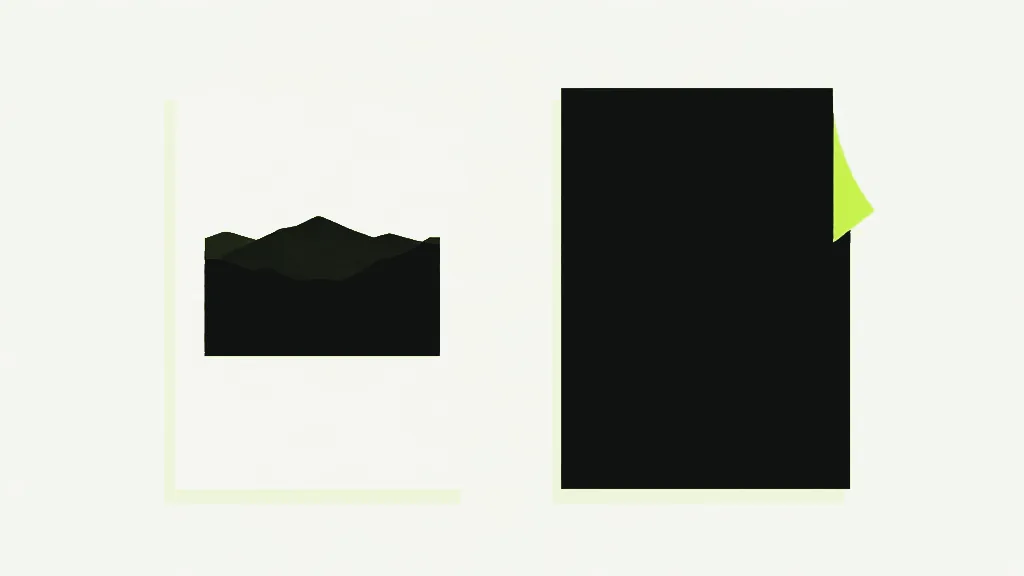
No. We put a 4000 by 3000 pixel landscape photo onto a portrait A4 page and read the PDF back with a separate PDF reader. The whole photo was there, drawn 24 points in from the left and right edges, with blank bands about three inches deep above and below it. Choose Landscape and the photo fills most of the sheet.
The photo is not re-encoded either. The JPEG goes into the PDF byte for byte, so that 70,770-byte photo produced a 71,862-byte PDF. Fit to image is the setting to avoid for printing: it turned the same photo into a page almost 42 inches wide. The general JPG guide explains that arithmetic.
One thing it does not fix: a phone photo taken sideways can show upright in Photos and still land sideways in the PDF, because the rotation flag is not read. Rotate PDF turns the page afterwards.
Why will my picture not convert?
Usually because it is not a JPEG, and File Explorer hides the clue. It hides file extensions unless you turn on View, then Show, then File name extensions. With them showing, three names are worth knowing on a PC.
- A .jfif file is a JPEG under another name, sometimes the result of saving an image from a web page. Windows registers .jfif as a JPEG type, and JPG to PDF reads the bytes rather than the name, so it converts. Our test file went in byte for byte, the same as a .jpg.
- A Windows screenshot is a PNG. Pressing the Windows key with Print Screen saves one to Pictures, then Screenshots. JPG to PDF refuses them with an error naming the file. PNG to PDF takes them.
- A .webp file is another web format. JPG to PDF and PNG to PDF both refuse it. Scan to PDF takes it: its Add photos button accepts any picture the browser can open, WebP included, and re-saves each one as a JPEG before building the PDF. That re-save is a fresh compression, so the photo is not copied byte for byte.
Renaming changes nothing, in either direction. A WebP renamed to .jpg is still a WebP and is refused, and a JPEG dropped in under any name still converts, because the check reads the file's contents. A refused file stops the whole conversion with an error naming it, and nothing half-built downloads. Remove that row with its × and click Create PDF again.
Can I convert JPG to PDF on my phone?
Yes. JPG to PDF is a web page, so it opens in a phone browser too. The iPhone guide covers the phone quirks: HEIC photos and pictures that stay sideways. On a Mac, Finder makes a PDF from a right-click; the Mac guide has that route.
Whichever device you use, the images are read and the PDF is assembled in the browser tab. The file is not sent anywhere, which matters when the photos are of a passport, a payslip or a signed form.