How to scan a PDF on iPhone
To scan a PDF on iPhone, open Notes, tap the camera or paperclip button, choose Scan Documents, and save. It finds the page edges for you. Scan to PDF in Safari is the no-app route, but it saves a video frame, so add Camera photos for sharp pages.
Your iPhone already has a document scanner, and for most paper it is the right tool: the Notes app finds the edges of the page, straightens it and saves a PDF, with nothing to install. Here is that route first, then the in-browser one for when you want the pages built into a PDF in Safari, and the one honest catch with scanning from a web page.
How do I scan a document to PDF on my iPhone?
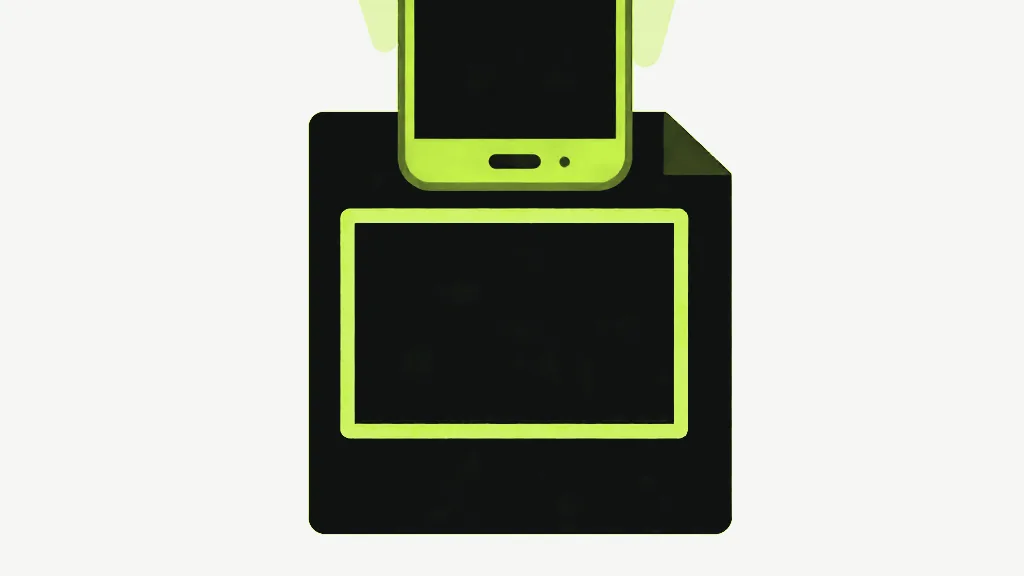
Open Notes, start a new note, and tap the camera button, which is a paperclip on iOS 26, then choose Scan Documents. Hold the phone over the page and it captures automatically when it finds the edges. Tap Save, and the scan sits in the note as a PDF.
The Files app has the same scanner: open Browse, tap the three-dot menu, and choose Scan Documents to save the PDF straight into a folder. Either way, you get edge detection, perspective correction and filters, which is more than any web page in Safari will do.
How do I scan to PDF without an app?
Open Scan to PDF in Safari. It is a web page, not an app, and it builds the PDF on the phone itself, so nothing is uploaded and there is no account.
Open the tool in Safari
Go to Scan to PDF and tap Start camera. Safari asks for camera access; the rear camera is the one requested.
Capture each page
Tap Capture page for every sheet. A numbered thumbnail appears each time, with arrows to move it earlier or later and an X to drop it. Tap Stop camera when you are done.
Or add photos instead
With the camera stopped, tap Add photos to pick pictures from your Photo Library. They join the same document, mixed in with any camera captures.
Pick a page size and create
Choose Fit to photo, A4 or Letter, then tap Create PDF. Safari saves babapdf_scan.pdf to Downloads in the Files app.
Why is a browser scan blurrier than a Notes scan?
Because Capture page saves a frame of live video, not a photo. The tool asks Safari for the rear camera but names no resolution, so it gets whatever default video size the browser picks, and that is usually far smaller than the full-resolution photo the Camera app takes. Small print can come out soft.
The fix sits in the same tool. Photograph each page with the Camera app first, then use Add photos: those pictures come in at their full size. Every image, captured or added, is redrawn on a canvas and saved as a JPEG at quality 0.92, so the pages are always JPEG. A picture that will not decode is skipped without a message, so count the thumbnails before you tap Create PDF.
Can I scan multiple pages into one PDF on iPhone?
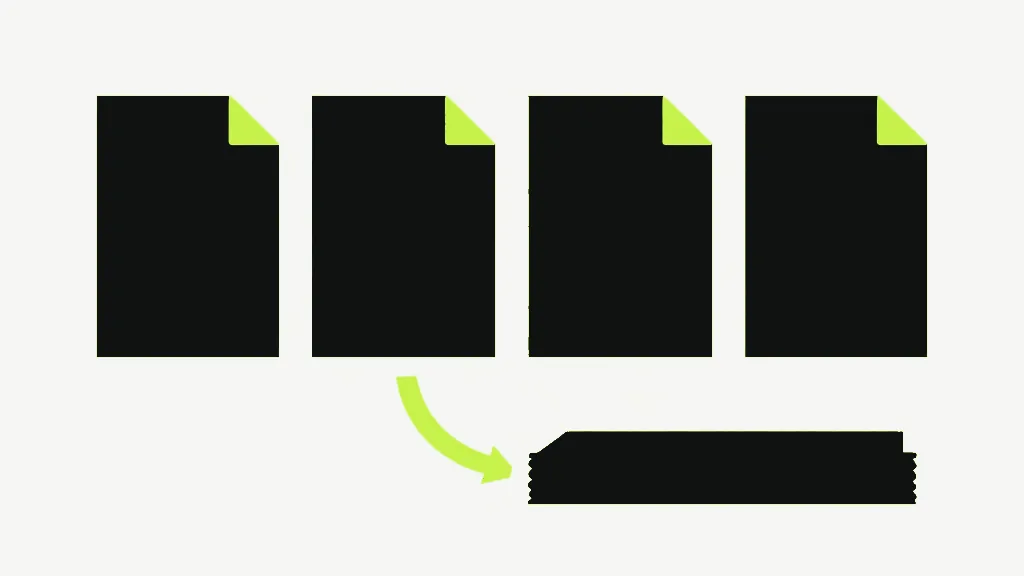
Yes. In Notes, keep capturing before you tap Save and every page lands in one PDF. In Scan to PDF, each Capture page or added photo becomes the next page, the arrows reorder them, and Create PDF writes them all into a single file, in the order the thumbnails show.
Is a scanned PDF searchable?
Not from Scan to PDF. Each page is a photograph, so there is no text to select or search, for the reason in why scanned PDFs have no selectable text. Run the result through OCR PDF, which reads English text and adds an invisible text layer, as in how to make a scanned PDF searchable.
Is it safe to scan documents in a web page?
Here, yes. The camera feed goes to a video element in the page, each capture is drawn to a canvas in that tab, and the PDF is assembled on the phone. No frame is sent anywhere; what client-side PDF tools mean explains how to check that yourself.
What page size should I pick?
A4 or Letter for anything you will print or email. Fit to photo turns each pixel into three-quarters of a point, so a full-size iPhone photo added from the library becomes a page roughly 42 inches across. It looks normal on screen and strange on paper. A4 and Letter fit the image inside a margin and add a portrait or landscape choice.
For the general walkthrough on any device, see how to scan a document to PDF. For photos you already have, how to convert a photo to PDF on iPhone covers the direct route.


