How to tell if a PDF tool is uploading your file
Prove whether any online tool sends your file to a server, in under a minute, using tools already built into your browser. No trust required.
You do not have to take any tool's word for whether it uploads your file — including this site's. Your browser can show you every byte that leaves your machine. The check takes under a minute and works on any online tool.
The idea
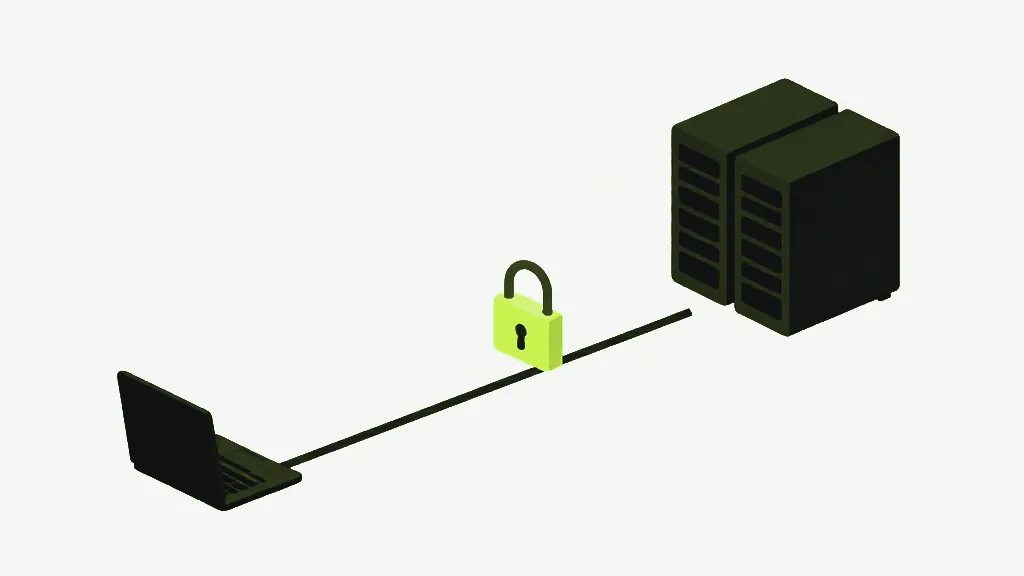
When a page sends your file to a server, it makes a network request: a POST, several megabytes in size, aimed at some address. That request is impossible to hide from the browser that makes it. Watch the network activity while you use a tool and an upload is unmistakable — and so is its absence.

Open the developer tools
In Chrome, Edge or Firefox, press F12, or right-click the page and choose Inspect. A panel opens. Click the tab labelled Network.
Reload so it records from the start
With the Network tab open, reload the page once so it is watching from the beginning. You will see the page load its own files — scripts, images, fonts. That is normal; those travelled from the site to you, not the other way.
Use the tool with a real file
Select your PDF and run whatever the tool does — merge, compress, convert — while you watch the Network panel.
Look for your file leaving
A genuine upload appears as a request whose size roughly matches your file, using the POST method, going out to a server. If your 8MB PDF was uploaded, an 8MB-ish request shows up. If nothing of the kind appears, nothing of the kind happened.
Confirm with the offline test
For a second opinion, load the page, disconnect from the internet, and try the tool again. A server-based tool stops working with no connection. A tool that runs in your browser keeps going — the clearest possible proof the work is local.
What counts as normal: a page always loads its own code, and may ping analytics or a font. Those are small and are not your document. You are looking specifically for one large request carrying your file's worth of data. Size is the tell.
What this proves, and what it does not
A clean Network tab proves your file was not sent during that session — a strong, first-hand fact. It cannot prove a tool will never upload under other conditions, so treat it as verification for the job in front of you, not a lifetime guarantee. For the tools on this site, the reason there is nothing to see is that the site is static files with no upload endpoint to send anything to.
Merge PDFCombine multiple PDFs into one file, in the order you choose.