How to compress a PDF on Android — and what it strips from phone photos
Open Compress PDF in Chrome, choose the file, pick Low, Medium or High, and tap Compress PDF. The photos are re-encoded on the phone and nothing is uploaded. Each re-encoded photo also loses its location tag and any motion clip.
Search for how to compress a PDF on Android and the answers are apps from the Play Store or sites that upload your file. A Chrome tab does the job on the phone with neither. Here is that route, and two things it does to photos taken on a phone that no other guide here covers: one useful, one a flaw to work around.
How do I compress a PDF on Android?
Open Compress PDF in Chrome, choose the file, pick Low, Medium or High, and tap Compress PDF. The photos inside are re-encoded in the Chrome tab on your phone, nothing is uploaded, and the smaller copy downloads with _compressed on the end of its name.
Open the page in Chrome
Open Compress PDF in Chrome on your phone. It is an ordinary web page, so there is no app to install and no account to make.
Choose the PDF
Tap the drop area and pick the file. Its original size appears under the level buttons, so you have a number to beat.
Pick a level
Medium is selected to start. Low keeps photos closest to the original and High shrinks hardest.
Compress
Tap Compress PDF. The download starts on its own, and Before, After and Saved appear with a line saying how many images were recompressed.
Does compressing a PDF remove the motion clip and location from my photos?
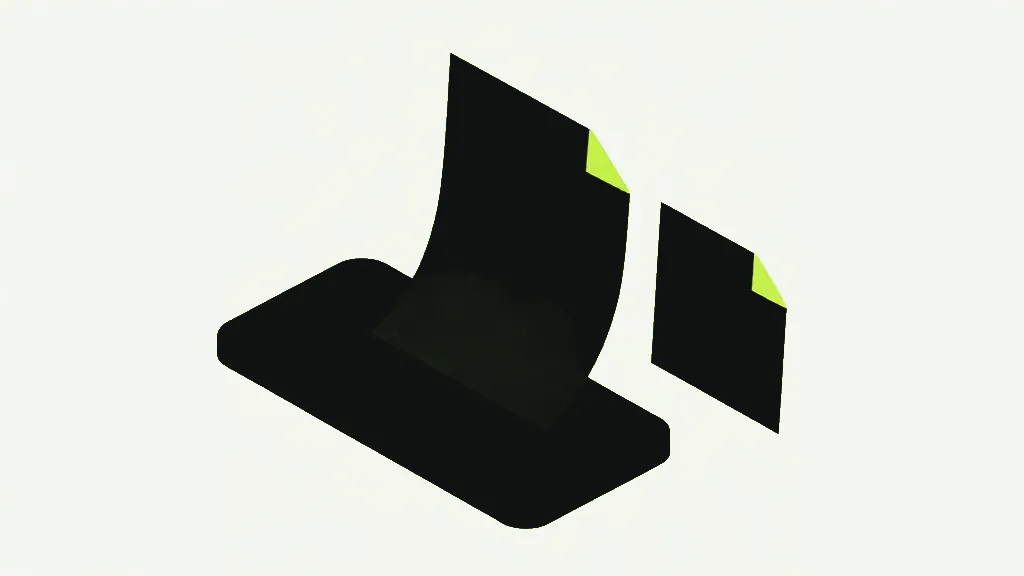
Yes, for every photo it re-encodes. Compress PDF redraws each JPEG through the browser's canvas and saves a fresh one, and a fresh JPEG carries none of the camera's extras: no location tag, no camera details, and no motion clip stored after the picture.
That matters on Android because Pixel and Samsung cameras can save a short clip inside the same .jpg as the photo. JPG to PDF copies each photo byte for byte, so whatever clip and location tag the browser receives go into the PDF too. We built a test photo in that layout, with a location tag and a two-megabyte stand-in for the clip, and turned it into a PDF of about 2 MB with JPG to PDF. The clip and the tag were both in it. Compress PDF at Medium brought it under 14 kB, and neither was left. The test picture was flat blocks of colour, so a real photo will not shrink that far.
One catch. A photo is swapped only when the new version is smaller, and photos with transparency or in CMYK print colour are skipped on purpose. The result line counts the images it recompressed. Anything outside that count went through unchanged, extras and all.

Why did my photo come out stretched after compressing?
Because the photo inside was stored on its side. Phone cameras often store a photo sideways with a tag saying which way is up. JPG to PDF does not read that tag, so the photo shows sideways in the PDF. Compress PDF decodes it with Chrome, which does read the tag, turns it upright, and then fits it back into the old frame, stretched.
We checked it with the same test picture twice, with and without the tag, and read both results with a separate PDF reader. Without the tag the page looked the same before and after. With it, the photo came back a quarter turn round and squeezed to fit. That is a flaw in Compress PDF, not in your phone. Until it changes, straighten first: rebuild the PDF with Add photos in Scan to PDF, which turns each photo upright and saves it without the tag, then compress that.
How can I compress a PDF to a specific size?
Not by typing one in. Compress PDF has three levels, not a size box. Each caps a photo's longest side, at 2200, 1600 or 1100 pixels, and sets its JPEG quality. Start at Medium, compare the After size with the limit, and if it is still over, run the original again at High.
Starting from the original each time keeps the quality loss to one pass. Whether High gets you under 1 MB or 100 kB depends on how many photos the file holds, since each one keeps up to 1100 pixels on its longest side. If it still does not fit, splitting it into parts that each fit is the honest fix.
Why is my PDF file so large?
Almost always photographs. Text and vector drawings are stored as compact instructions, while a photo is stored as pixels. A PDF made on a phone can also be carrying motion clips, as above. A typed letter hardly moves at all, and when there is nothing to work on, the result line says no compressible images were found. Why PDFs get so large shows where the weight hides.
Does it work without an internet connection?
Once the page has loaded, yes. We opened Compress PDF, shut down the server it came from, and compressed a test file from 636.1 KB to 223.5 KB, as the tool reported it, with nothing to connect to. The compressing happens in the tab, so it has no use for the connection. We ran that test in Chrome on a computer, not on an Android phone.
Compress PDF works the same on any device. The Windows guide covers why zipping barely helps, the Mac guide sets it against Preview's built-in filter, and what client-side PDF tools mean explains how a browser tab does this without a server.