How to edit a PDF on Android, and why your palm matters
To edit a PDF on Android for free, open it in Files by Google and tap Edit for a pen and highlighter, or open Annotate PDF in Chrome to add typed text, boxes and circles too. Neither one rewrites the words already printed on the page.
Android has a built-in way to mark up a PDF now, and it is easy to miss. Files by Google, Google's own file manager (free on the Play Store if your phone did not come with it), has an Edit button for PDFs. It draws and highlights, and Google's own guide lists nothing beyond that. For more, most guides point you to an app. A Chrome tab covers the gap: typed text, neat boxes and circles, saved straight to your phone. Here is which to use, and one habit to break before you write on the screen with a stylus.
Can I edit PDFs on Android?
Yes, if editing means adding to the page: a highlight, a circled figure, a typed date, your initials. On Android you can do that in Files by Google or in a Chrome tab, free and without an account. What none of these tools do is retype the words already printed there, because a PDF does not store them as sentences you can change.
Does Android have a built-in PDF editor?
Partly. Google's help page for Files by Google says to open the PDF, tap Edit at the bottom right, and pick a pen, a highlighter or an eraser, with undo and redo. Google's page lists no text tool. Tap Save copy and the marked-up copy is uploaded to your Google Drive; the original on the phone stays unmarked.
That last step is worth noticing before you start. The built-in route keeps its result in your Drive account, which is fine for most documents. If you need typed text, a straight-edged box, or a marked copy that stays on the phone rather than going to your Drive, use a browser tool instead.
How do I add text to a PDF on Android for free?
Open Annotate PDF in Chrome, choose the PDF, tap the Text tool, tap the page where the words go and type. The same toolbar has Draw, Highlight, Box and Circle in five fixed colours. Tap Save annotated PDF and Chrome downloads a new copy.
Open the tool in Chrome
Open Annotate PDF. It is just a page in Chrome: no Play Store install, no account.
Choose the PDF
Tap browse your device and pick the file from Downloads, Drive or wherever it lives. Every page is rendered on the phone before the toolbar appears, so a long document takes a moment.
Pick a tool, a colour and a size
Draw, Highlight, Text, Box or Circle, in one of five fixed colours, with a size slider from 1 to 8 for the stroke weight or text size.
Mark the page
Drag a finger or a stylus to draw or highlight, or pull out a box or circle. For text, tap where it goes, type, then press the keyboard's Enter key or tap off the box to finish it; for a second line, tap below and start another. The arrows under the page step through a longer document.
Save
Tap Save annotated PDF. The marked-up copy downloads with _annotated on the end of its name, and your original is not changed.
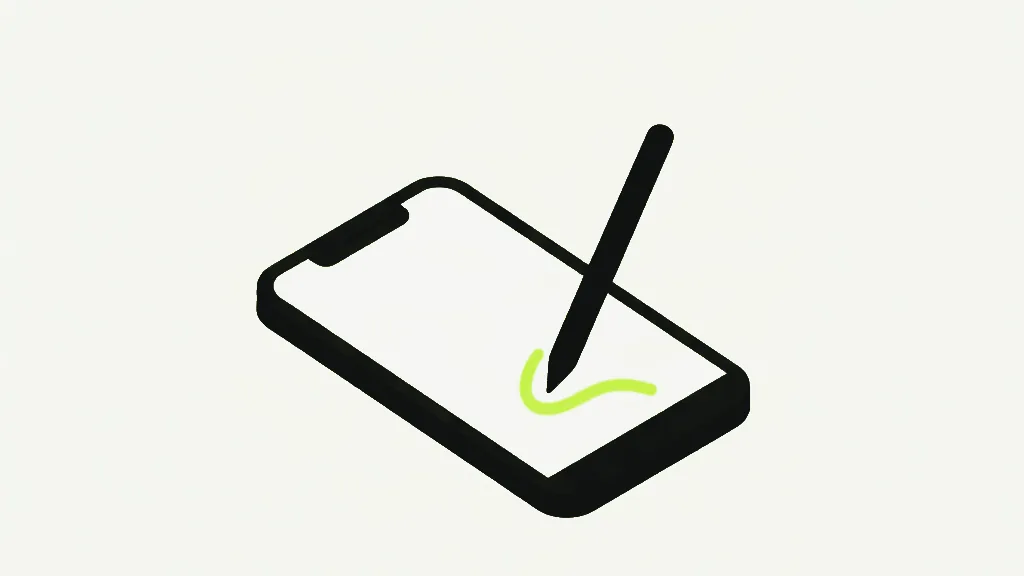
Why does my line jump across the page when I write with a stylus?
Because the drawing surface treats every touch as part of one line. If your palm is resting on the glass while you write, it and the pen tip feed the same stroke, and the line zig-zags between them. If your hand lands partway through, what you had drawn so far is thrown away too. Lift your hand off the page, undo, and write again.
We tested this rather than guessing. We fed the real drawing surface two touches at once, a resting point on the left and a pen moving on the right, and it recorded a single mark: a zig-zag joining the two, with nothing drawn where the first touch landed. The same pen path on its own drew a clean line. Pen pressure is ignored too: a stroke reporting almost no pressure and one reporting full pressure came out exactly the same width, so an S Pen writes at one even thickness set by the size slider. Whether a tablet's own palm rejection filters your hand out before Chrome ever sees it depends on the device, and we did not test on one. If the line jumps, rest your hand off the screen.
Can you make an existing PDF editable?
Yes, by converting it rather than editing it. Turn the PDF into a Word document with PDF to Word, change the words in Word or Google Docs on your phone, then save it as a PDF again. The converter rebuilds paragraphs from where the letters sit, so plain prose survives better than tables and columns.
A scanned page is different: it is a photograph of text with no letters in it at all, so the converter has nothing to work with. Run it through OCR PDF first to give it a text layer. For the deeper reason the format resists retyping, why editing a PDF is awkward walks through it.

Do my marks hide what is underneath?
Not in the file. Annotate PDF lays your marks over the page as a see-through image, and the page's own text stays underneath, selectable and searchable. Scribble over a phone number as thickly as you like and the number is still in the file, and a black box is not redaction explains why. Redact PDF is the tool that takes it out.
What should I know before I save?
- Your marks are held only in the open page until you tap Save. Nothing is saved as you go, so if you swipe back off the page, or return to a tab Chrome has reloaded while you were in another app, they are gone. Save before you switch away for long.
- Saved marks are flattened into the page, so they look the same in every viewer and cannot be moved or deleted later. Keep the original if you might want to revise them.
- Typed text becomes part of that image, so it is not searchable in the saved file.
- A password-protected PDF will not open in the tool. If you know the password, Unlock PDF removes it first.
All of it runs in Chrome on the phone in your hand: the pages are rendered, marked and saved on the device, and nothing is uploaded, because there is no server to upload to. To sign rather than mark up, how to sign a PDF on Android covers that route, and a form with real fields is quicker in Fill PDF Forms. The desktop walkthrough is how to annotate a PDF, and the Apple version is how to edit a PDF on iPhone.