How to scan to PDF on Android — and why a browser scan comes out so small
To scan to PDF on Android, open Files by Google and tap Scan: it finds the page edges and saves a PDF on the phone. Scanning in Chrome works too, but Chrome hands a web page a small 640 by 480 camera frame by default, so photograph small print first.
Most Android phones already have a document scanner, and for paper it is the one to reach for first. Files by Google and Google Drive both find the edges of the page and save a PDF. Here is that route, then the in-browser one, and the two things a browser scan does differently: the size of the picture it takes, and what it does with a sideways photo.

How do I scan a document to PDF on Android?
Open Files by Google, tap Scan at the bottom right, point the camera at the page and capture it. Google's help page says the scans are saved as searchable PDFs. Google Drive has a similar scanner behind its Camera button. We describe both from Google's own help pages and have not tested them on a phone.
The difference between the two is where the PDF ends up. Google's help pages describe Files by Google saving the PDF on the phone, while Drive's scanner saves it to a folder in your Drive, which means the scan is uploaded to your Google account. For a passport or a payslip, that is worth knowing before you tap Save.
How do I scan documents with my phone camera in a browser?
Open Scan to PDF in Chrome, tap Start camera, and tap Capture page for each sheet. The PDF is assembled in the Chrome tab and downloads as babapdf_scan.pdf. There is no app to install and nothing is uploaded.
Open the tool in Chrome
Open Scan to PDF and tap Start camera. Chrome asks once for permission to use the camera, and the tool requests the one on the back of the phone.
Capture each page
Hold the phone square over each sheet and tap Capture page. Every capture lands as a numbered thumbnail; the arrows reorder it and the X removes it.
Stop the camera to add photos
Tap Stop camera when you are done. The Add photos button only shows while the camera is off, and it pulls in pictures already on the phone.
Pick a page size and create
Choose A4 or Letter for anything you will print or send, then tap Create PDF. The file downloads as babapdf_scan.pdf.
Why is a browser scan so small?
Because Scan to PDF asks Chrome for the rear camera but names no resolution, and Chrome then picks 640 by 480 pixels. That is about a third of a megapixel. Fitted to a Letter page, a landscape frame that size works out at roughly 82 pixels per inch, and an upright one at about 62, which turns small print soft.
We measured this rather than assumed it. In Chromium 153, the engine Chrome is built on, we made the exact camera request the tool makes against a test camera that could deliver 3840 by 2160. It got 640 by 480. Asking the same camera for a large size got the full 3840 by 2160, so the camera was not the limit; the default was. We ran this on a PC with a simulated camera, not on an Android phone, so treat the number as Chrome's default rather than a promise about your phone.
The way round it is in the same tool. Photograph each page with your Camera app first, then stop the camera in Scan to PDF and tap Add photos. Those pictures come in at their full size. Every page, captured or added, is redrawn and saved as a JPEG at 92 percent quality.
Why does my sideways photo come out straight here?
Because Add photos turns each picture upright before it becomes a page. Many phone cameras save the picture the way the sensor saw it and add a flag saying which way to turn it. Chrome reads that flag when it opens the picture, and Scan to PDF draws the upright result.
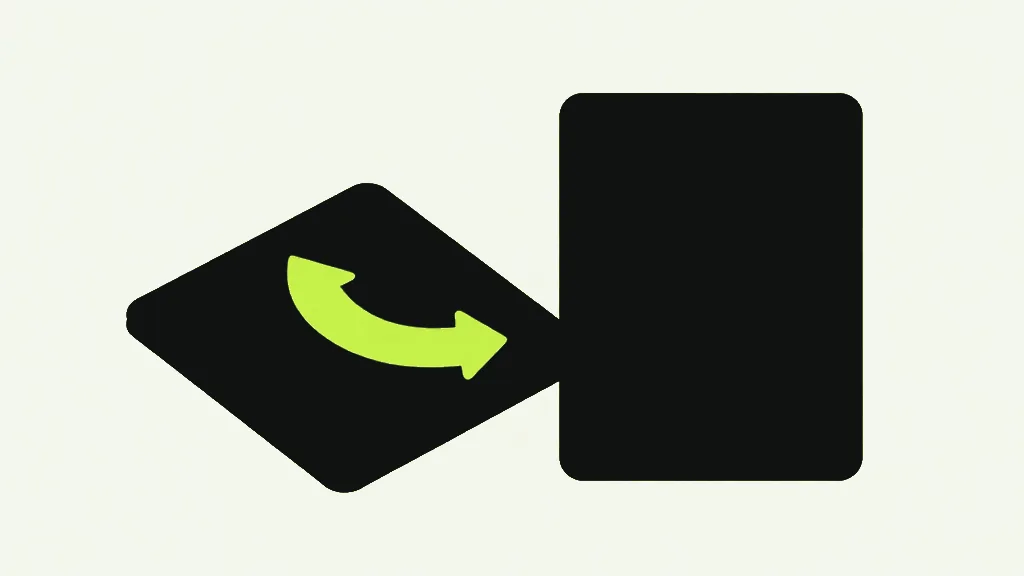
We checked it with a test photo stored on its side with a rotate flag. Through the real Scan to PDF path, the PDF page came out portrait with the top of the picture at the top, read back with a separate PDF reader. Through JPG to PDF, the same file made a landscape page with the picture on its side, because that tool copies the JPEG in untouched and the PDF reader ignored the flag.
So on Android, if your photos keep landing sideways in a PDF, Add photos in Scan to PDF is the fix, rather than Rotate PDF afterwards. The re-save also leaves out the motion clip and location tag some Android cameras store, as the Android photo guide explains. One catch: a picture Chrome cannot open, such as a HEIC, is skipped without a message, so count the thumbnails before you tap Create PDF.
How do I turn a document into a PDF on my Android phone?
For paper, scan it with one of the routes above. For a document already on the phone, open it, find Print in the app's menu, and pick Save as PDF as the printer. That print route is widely documented for Android; we have not tested it ourselves.
How do I scan a passport on my phone?
Lay it flat on a dark surface, in even light with no glare on the photo page, and fill the frame. Take the photo with the Camera app for the sharper picture, then add it in Scan to PDF. The pages are put together in the Chrome tab, so nothing is sent to a server, unlike a scanner that saves to the cloud.
Can I search the text in my scanned PDF?
Not from Scan to PDF. Every page is a photograph, for the reason in why scanned PDFs have no selectable text. Run the result through OCR PDF, which reads English text and adds an invisible layer you can search. The general scanning guide covers the camera route on any device, and the iPhone guide covers Notes and Safari.