How to merge PDF files on Windows — and why the result is so big
Windows has no built-in PDF merger. Open Merge PDF in Edge or Chrome, add the files, drag them into order and click Merge. Print to PDF files each carry their own font, so the result is about the sum of its parts.
Windows has no built-in way to merge PDF files. Microsoft Print to PDF creates a PDF from one print job, and it cannot join two existing ones. The free route that keeps the files on your PC is Merge PDF in a browser tab: add the files, drag them into order, click Merge. One Windows quirk is worth knowing first, because it explains why merged files often come out bigger than expected.
Does Windows have a PDF combiner?
No. Windows 10 and 11 can make PDFs through Microsoft Print to PDF, but an answer on Microsoft's own Q&A site puts it plainly: Print to PDF works from a single print job and cannot merge existing PDF files into one. Pictures are the exception, covered in how to convert JPG to PDF on Windows.
How can I merge PDF files on my PC for free?
Open Merge PDF in Edge, Chrome or Firefox, add the files, put them in order and click Merge. There is nothing to install, no account and no file limit. The combined PDF is built on your PC, not on a server, so it suits payslips and contracts as well as anything else.
Open the tool
Open Merge PDF in any browser on the PC. It is an ordinary web page, so nothing is installed.
Add your PDFs
Click the drop area and pick the files, holding Ctrl to select several, or drag them straight from File Explorer onto the page.
Check the order
The list keeps the order the files arrived in. It does not sort them by name, so drag rows by the grip handle until it reads top to bottom the way the document should.
Merge
Click Merge. The file downloads as babapdf_merged.pdf, into your Downloads folder unless your browser asks where to save it.
Why is my merged PDF so big?
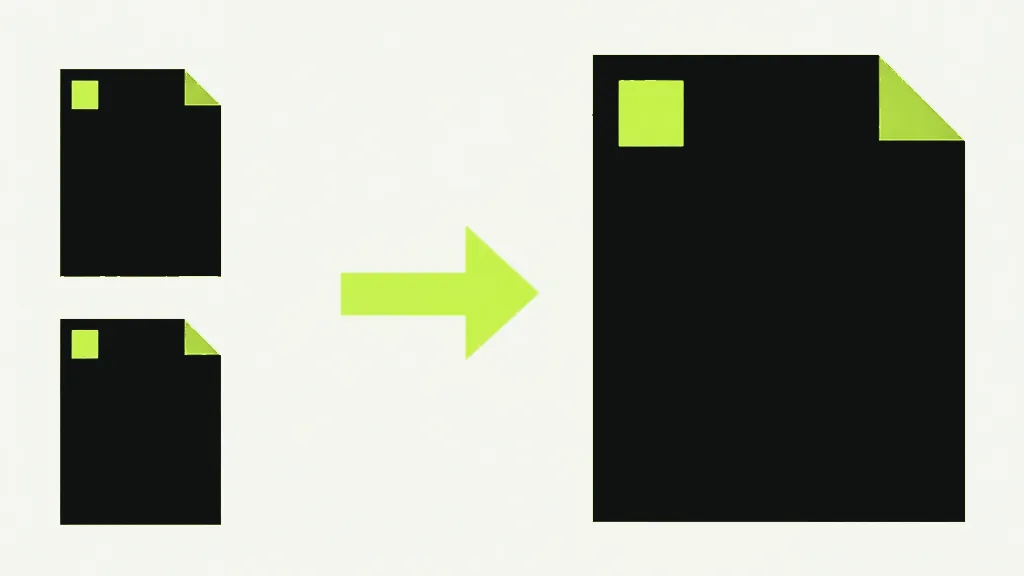
Because each PDF made with Microsoft Print to PDF carries its own copy of the font, and a merge keeps every copy. We printed one line of Calibri text to PDF twice on a Windows PC. Each file came out at just over 208,000 bytes, and 204,584 bytes of the first one was the embedded font. Merged, the two pages came to 414,100 bytes: both fonts, side by side.
The pages are copied across exactly, which is why nothing is lost and also why nothing is shared. If you are printing the pages to PDF yourself, print them as one job rather than one file each. The same two pages printed together came to 209,404 bytes, with the font stored once.
Why is there no option to combine PDF files?
Usually because the Combine Files command you are looking for belongs to paid Adobe Acrobat. The free Acrobat Reader lists the tool, but combining files there needs a paid Acrobat plan or Adobe's online tool, and Windows itself adds no merge option to File Explorer. How to merge PDF files in Adobe Acrobat covers the Acrobat side.
What is the best way to combine PDF files?
Pick a route that copies pages rather than redrawing them. Merge PDF copies each page as it is, so text stays selectable and images are not compressed again. What it cannot keep is anything stored at the document level rather than on a page, so check that list before you merge.
Form fields, bookmarks and the document title stay behind, as in any merge that builds a new file from pages. Print to PDF saves the print job's name as each file's title (our test files were titled Invoice document and Receipt document), and the merged file has no title at all. If a filled-in form matters, flatten it first so the answers become part of the page.
What does "No PDF header found" mean?
It means one of the files in the list is not a PDF. A selection dragged out of File Explorer brings every file along, and the tool accepts whatever is dropped, so a Word document or a photo can slip in. Unlike the locked-file error, this one does not name the file. Check the list, remove the odd one with ×, and merge again.
A password-protected PDF stops the merge too, but that message names the file. Remove the password with Unlock PDF, then merge. Once everything is one document, Organize Pages reorders pages inside it. How to merge PDF files is the general walkthrough, and how to merge PDF on Mac covers Preview and Finder.