Why splitting a PDF barely shrinks the pieces
Splitting a PDF does not shrink the pieces. Page count is not file weight — the weight is images, and splitting copies them across untouched.
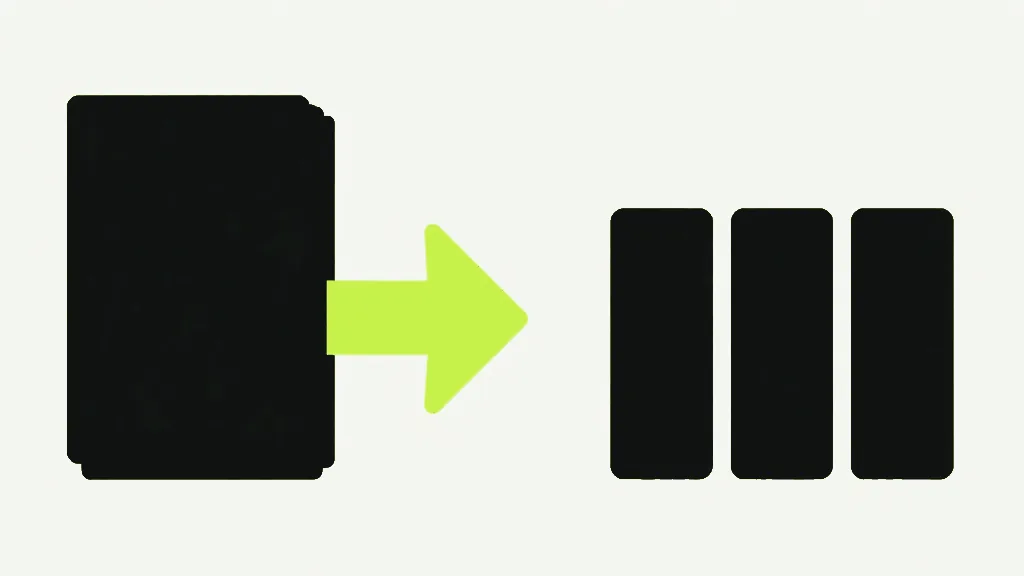
Splitting a PDF into pieces does not make the pieces small. Cut a 40MB scanned report in half and you get two files that together still weigh about 40MB — each carries its own pages at full quality, and the pages are where the weight lives. Page count is not file size. A file is heavy because of what its pages contain, almost always photographs, and splitting distributes those pages without touching a single byte inside them.
This surprises people because "smaller file" and "fewer pages" feel like the same thing, and they are not. Why a PDF is 40MB is a question about images; how many pages it has is almost beside the point. A hundred-page contract of pure text can be under a megabyte, and a two-page brochure full of high-resolution photos can be twenty.

Split is a copy, and copying is faithful
Our split tool, like merge, delete and extract, is copy-based: it makes new PDFs and copies whole pages into them. Copying a page is genuinely lossless — the page arrives in the new file exactly as it was, text still real text, images at their original resolution and quality. That fidelity is the feature. It also means every heavy image on a page goes into whichever split piece that page lands in, at full weight. The tool is doing precisely what it should; it just isn't a compressor, and nothing about cutting a document apart re-encodes the expensive parts.
Occasionally the pieces can even add up to slightly more than the original. If a resource is shared across pages — one embedded font, a logo that repeats on every page — the original stored it once, but two split halves may each end up with their own copy. It is usually a small effect, but it is the opposite of shrinking, and it is a clue to what "splitting" actually does at the byte level: it rebuilds self-contained documents, and self-contained has a cost.
What does make a file smaller
There are two honest ways to reduce a PDF's size, and neither is splitting. The first is compression, which re-encodes the embedded photographs at a lower quality and resolution — that is the operation that targets the actual weight, and it reports how many images it changed so you can tell whether there was anything to squeeze. The second is deleting the heavy pages you do not need: because Delete Pages is copy-based too, dropping a page genuinely drops its images from the output, so removing the thirty scanned appendix pages really does make the file smaller. Splitting keeps every page; it only decides which file each one lands in.
If your reason for splitting was an upload limit, split first to isolate the pages you actually need to send, then compress that piece — or delete the pages you do not need before you start. Splitting alone will hand you a piece that still will not fit, because the photographs that blew the limit came across at full size.
And if the file is text through and through, nothing will shrink it much — not splitting, not compression — because text costs almost nothing to store in the first place. A tool promising a dramatic reduction on a text-only PDF is either rasterising your pages into pictures or rounding up. The weight was never the pages; it was what a few of them were carrying.
The two ways to split, and where splitting does help
The tool splits two ways — one new file every N pages, or cuts made at page numbers you choose — and both are the same copy operation underneath, so neither re-encodes a thing. Where splitting genuinely helps a size problem is as a first move rather than the whole answer. If a sixty-page scanned file will not attach to an email, split out only the pages the recipient actually needs, then compress that smaller piece: you have shrunk it by sending fewer heavy pages and then squeezing the images on the ones that remain. The split narrowed the problem down; compression is what actually made the bytes smaller.
The confusion is worth naming precisely, because it costs people time. "Split" sounds like it should divide the file size along with the pages, the way cutting a cake divides the cake. But a PDF is not one substance spread evenly across its pages — it is a set of independent pages, each carrying its own weight, and cutting between them only decides which output each page goes into. The heavy pages stay exactly as heavy; they simply end up in a smaller stack. A ten-page file where page four is a full-resolution photograph and the rest is text splits into pieces whose sizes track where page four landed, not how many pages each piece has.
So the right tool depends on the actual goal. If you need the document in separate parts — a chapter each, a statement per month — split it, and accept that the parts weigh what their pages weigh. If you need it smaller, compress the images or drop the pages you do not need. And if you need both, do them in order: split to isolate, then compress the piece. Reaching for split when the real problem is size is the single most common way people end up with several files that still will not attach to the email.
Split PDFBreak one PDF into several separate documents.- Splitting distributes pages between files; it never re-encodes what is on them, so the pieces stay heavy.
- Split is lossless copying — faithful, and therefore not a compressor.
- Shared resources can be duplicated into each piece, so splits can even total slightly more than the original.
- To shrink, compress the images or delete the heavy pages — splitting does neither.